 Join our Discord
Background hands for any agent.
Cua Driver is an open-source computer-use driver for macOS, Windows, and Linux. Agents connect over MCP or the CLI and send input to a chosen window without moving the system cursor.
/bin/bash -c "$(curl -fsSL https://cua.ai/driver/install.sh)"After install, cua-driver doctor checks permissions and daemon health.
Keep your cursor while the agent works.
Each command targets a window instead of the shared cursor. An agent can use iPhone Simulator or edit a CAD drawing while you work elsewhere. Some software requires focus; the driver reports that constraint so the caller can retry or allow foreground input.
Read the no-foreground contract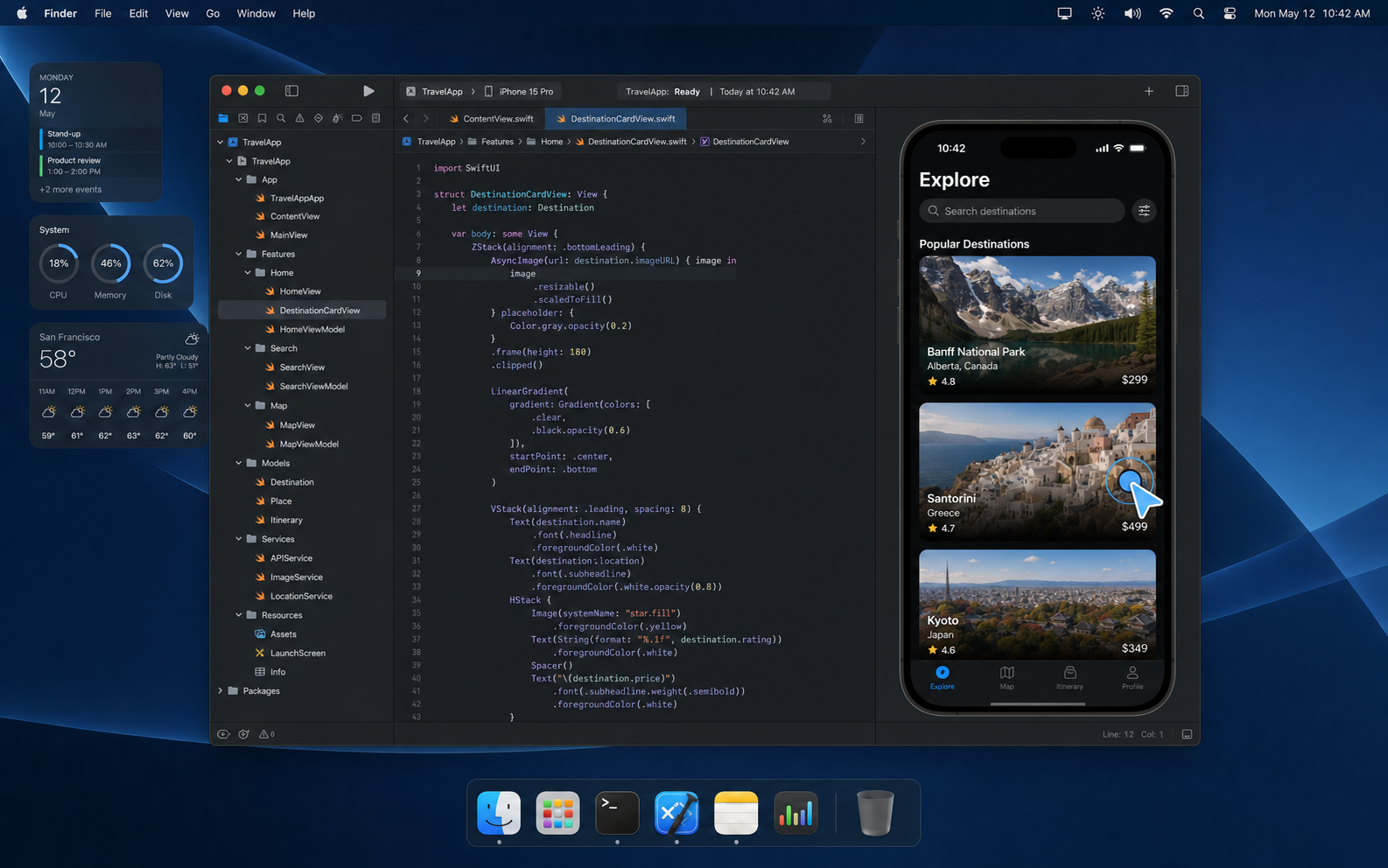
Cua Driver clicks inside iPhone Simulator without interrupting the Xcode window beside it.
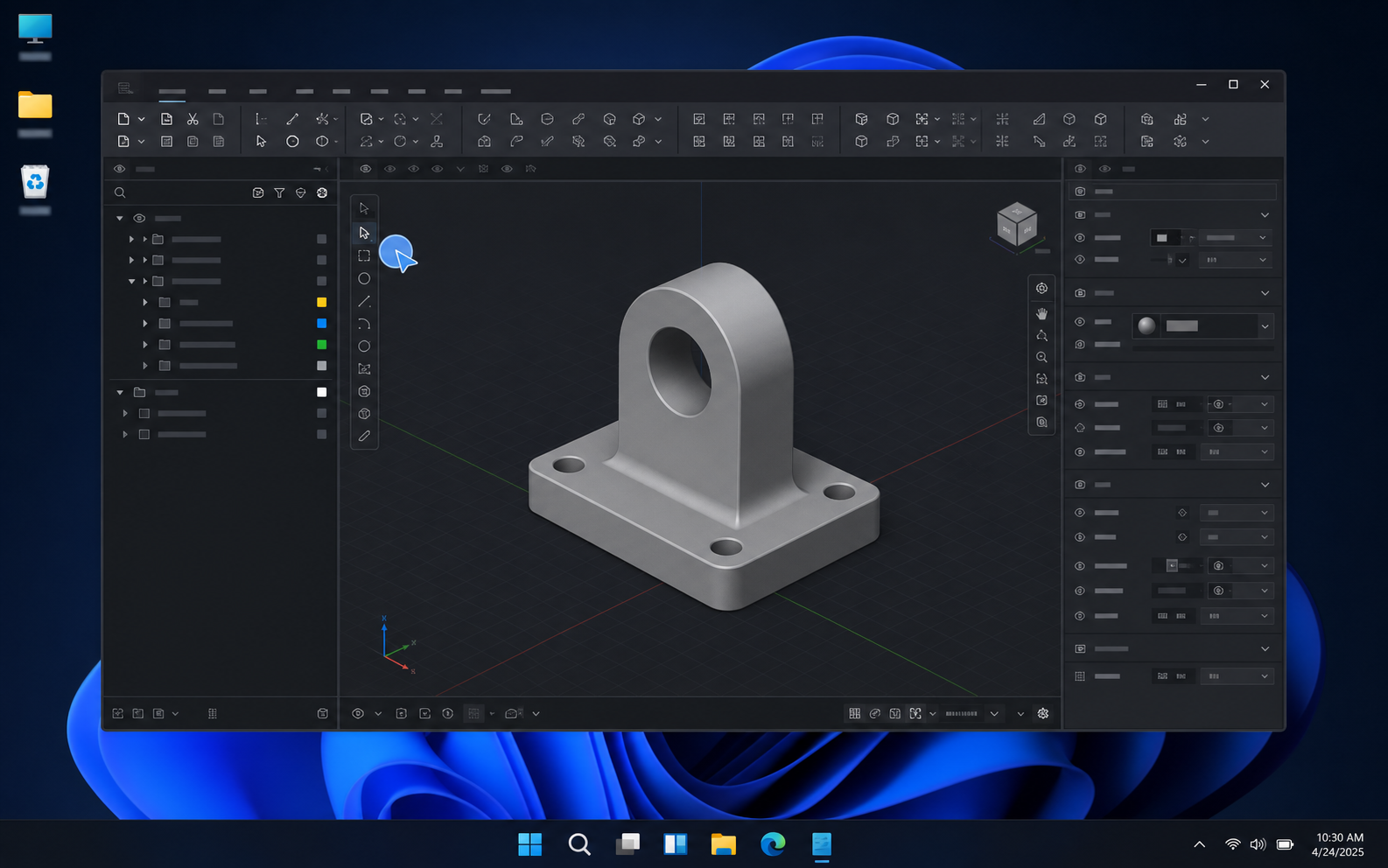
Cua Driver edits the CAD drawing without moving the system cursor.
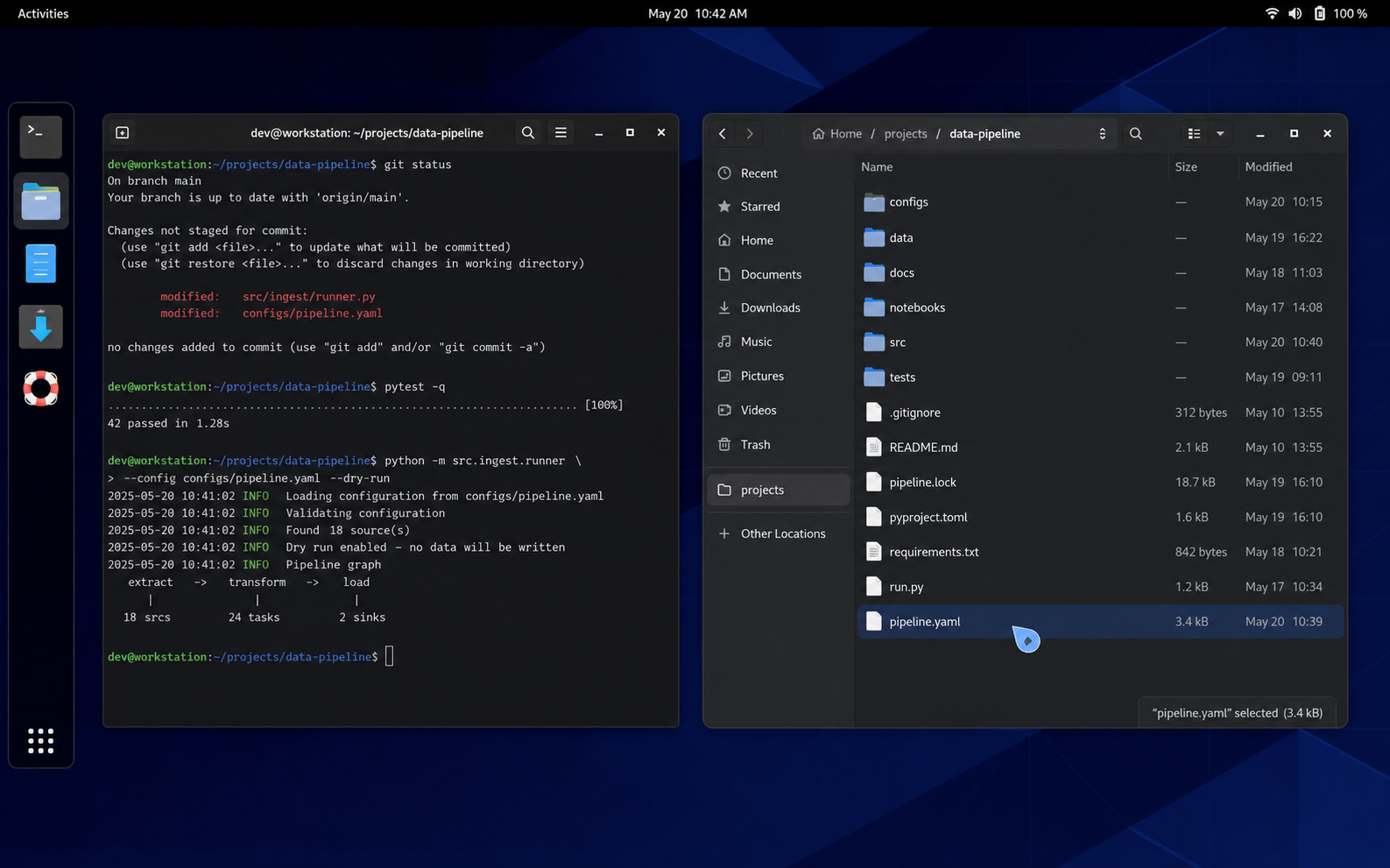
Cua Driver targets the file manager through X11 without moving the system cursor.
Connect your MCP client over stdio.
Register cua-driver mcp once. The server exposes window snapshots and input tools through one MCP connection. After each click or keystroke, request another snapshot to verify the result.
claude mcp add --transport stdio cua-driver -- cua-driver mcpcua-driver mcp-configMIT licensed, powering computer-use in Hermes, Clicky, H Company, and Factory Droid.
The same binary runs as an MCP stdio server, a long-running daemon, or a one-shot CLI command.
cua-driver mcpStarts an MCP stdio server for Claude Code, Codex, and any client that can spawn a process.
cua-driver serveKeeps sessions and window state alive between tool calls.
cua-driver callRuns one tool call from the shell for scripts and debugging.
Common questions about Cua Driver.
Send your first background click.
The tutorial covers installation and your first click without moving the system cursor.