

Quickstart
Install the cua CLI, start a local Linux or macOS sandbox, run a command in it, take a screenshot, and drive its desktop.
Start a sandbox on your own machine, run a command in it, take a screenshot and drive its desktop. A Linux sandbox works on macOS, Linux and Windows. A macOS sandbox needs an Apple silicon Mac.
Before you start#
- For a Linux sandbox: macOS, Linux or Windows with Docker, or another local
runtime (
cua runtime doctorlists them). - For a macOS sandbox: an Apple silicon Mac on macOS 14 or later, with about 40 GB of free disk and 8 GB of free memory.
Install#
curl -fsSL https://cua.ai/install.sh | sh -s -- --cli-only # or: pip install cua, npm i -g @trycua/cuaLinux sandbox#
Create it, run a command in it and take a screenshot:
cua sb create linux --name dev
cua sb exec dev "uname -a"
cua sb screenshot dev -o dev.png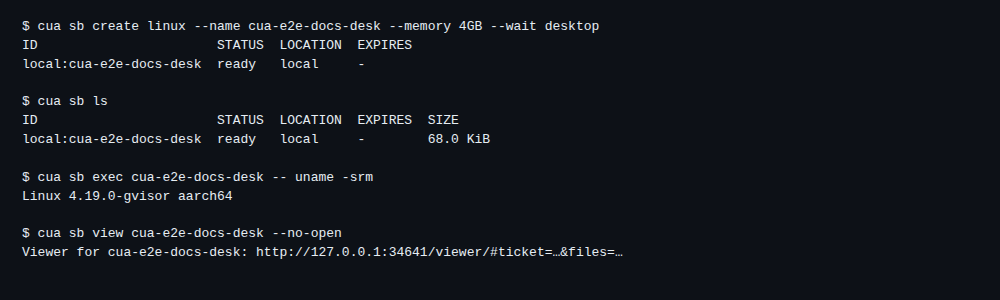
exec prints the guest's kernel line and exits with the command's status.
dev.png is the sandbox desktop. With --json the result is structured:
cua --json sb exec dev pwd # {"stdout": ..., "stderr": ..., "returncode": 0}Drive the desktop#
--wait desktop returns once the desktop accepts input (display, window
manager and Cua Driver). cua do input waits for it too, and fails when the
input reaches no window.
cua sb create linux --name desk --wait desktop
cua do switch desk
cua do launch xfce4-terminal   # waits for the new window and focuses it
cua do type "echo hello"
cua do key enter
Remove the Linux sandboxes#
cua sb rm dev
cua sb rm desk
macOS sandbox#
Set up the runtime#
cua runtime doctor
cua runtime setup lume   # installs Lume if it is missing
Create it#
cua sb create macos --name macID STATUS LOCATION KIND RUNTIME EXPIRES
local:mac ready local vm lume -macos is ghcr.io/trycua/macos:26 (Tahoe). macos:sequoia is :15. The first
create pulls the image (23 GB, about 8 minutes). Later creates clone it and are
ready in about 25 seconds. The Tahoe image starts cua-spacesd at login, with its
screen and accessibility permissions already granted.
Run a command#
cua sb exec mac -- sw_versProductName: macOS
ProductVersion: 26.5.2
BuildVersion: 25F84exec runs through cua-spacesd and keeps stdout, stderr and the exit code
apart. The Sequoia image has no cua-spacesd, so there exec runs over SSH
(lume ssh).
Take a screenshot and open the desktop#
cua sb screenshot mac -o desktop.pngwrote desktop.png (1024x768)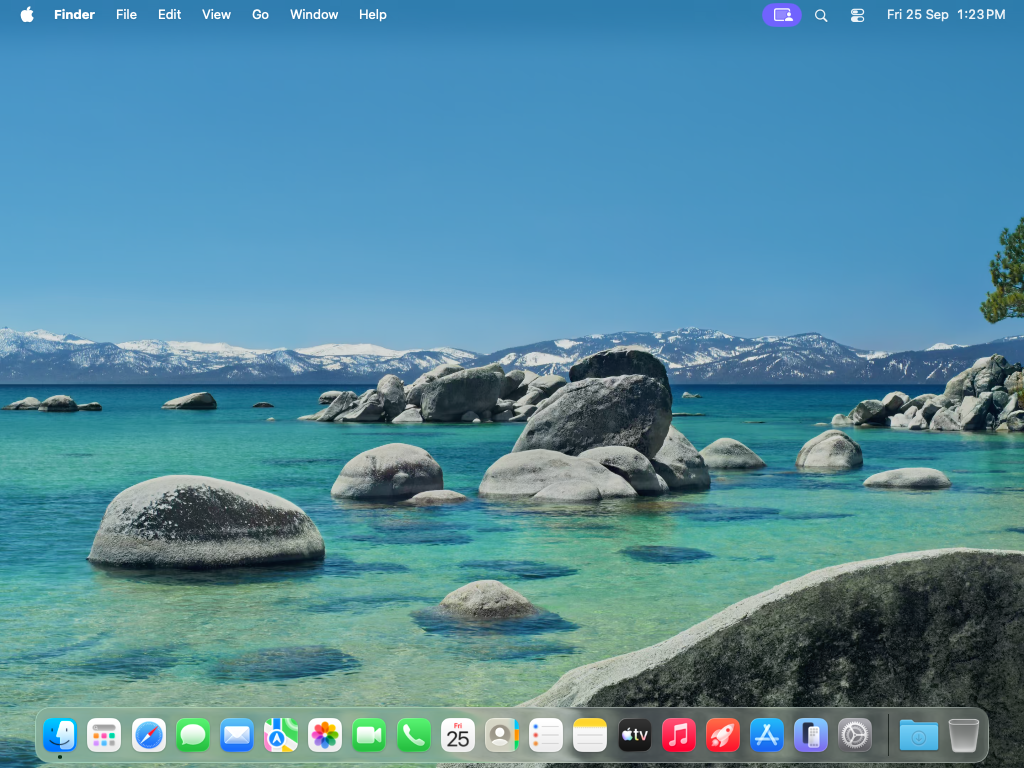
cua sb view macViewer for mac: http://192.168.64.63:3211/viewer/#ticket=****&files=%2FUsers%2Flumeview opens cua-spacesd's HTML5 viewer in your browser with a short-lived
ticket (--no-open prints the URL instead). On Sequoia, screenshots come over
the VM's VNC endpoint and view opens the display with lume attach.
Remove it#
cua sb rm macThe pulled image stays as a stopped base VM for the next create. cua cache ls
lists it.
Use the SDK instead#
from cua_sandbox import Image, Sandbox

async with Sandbox.ephemeral(Image.macos()) as sb:
    print((await sb.shell.run("sw_vers")).stdout)
    png = await sb.screen.screenshot()
sb.shell and sb.screen go through cua-spacesd, the same path as the CLI.
Next#
- Authentication: sign in, check who is signed in, sign out.
- MCP server: give an AI agent these sandboxes.
- CLI reference: every command and option.
- Local runtimes
- Sandbox images
- Lume quickstart: a vanilla macOS VM from Apple's restore image, with Lume alone.