
Prepare an exhibition panel
Use GIMP, Inkscape, and LibreOffice Writer with Cua Driver to turn fictional archive objects into panels and an installation packet.
Crop a fictional archive ticket in GIMP, create two editable exhibition panels in Inkscape, and assemble a two-page installation packet in LibreOffice Writer. Keep the source files and inspect the exported PDFs in Preview.
The clip shows selected image and panel edits in GIMP and Inkscape. The prompt below also includes the object key and installation packet.
Recorded on macOS with GPT-6 Astra + Cua Driver. Selected gestures play at 1x; setup, waits, retries and intervening edits are cut. These examples include foreground/desktop input and fictional data. Clip duration is not task completion time.
Prepare the apps and source files#
Use a Mac with GIMP, Inkscape, LibreOffice Writer, and Preview installed. Follow Install Cua Driver, grant the required macOS permissions, and connect your agent. Keep the desktop available while the agent works.
Download these original, synthetic inputs into one working folder:
- Archive contact sheet (PNG): a 4200 × 3000 image containing a ticket, route card, and timetable.
- Blank panel guide (SVG): an A4 landscape page with nonprinting guides for a 15 mm safe margin.
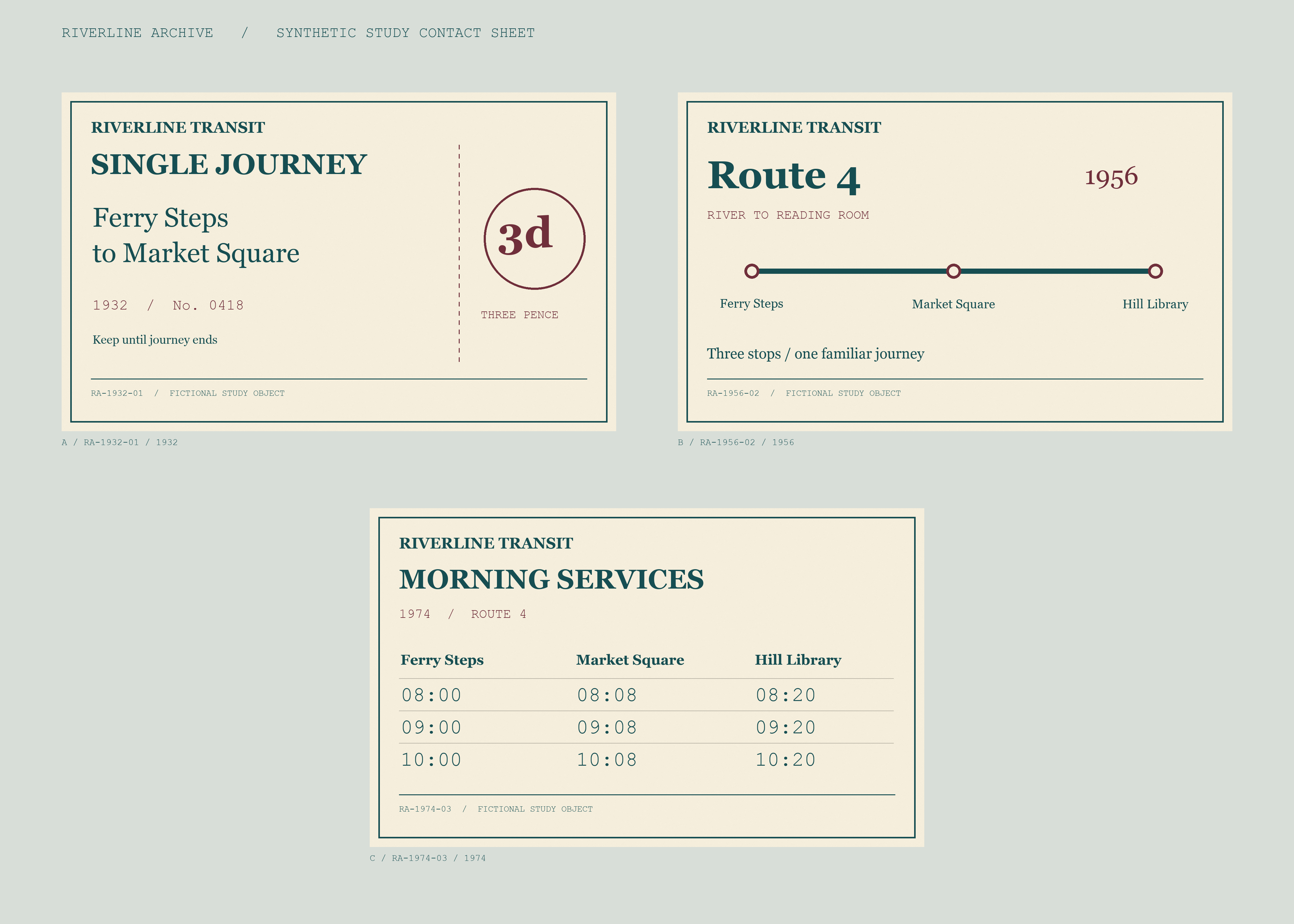

The Riverline Archive collection, transport history, and objects are invented. Use these captions for the fictional exhibition, Everyday Journeys:
| Station | Object ID | Year | Caption |
|---|---|---|---|
| A | RA-1932-01 | 1932 | A three-pence ticket links Ferry Steps and Market Square. |
| B | RA-1956-02 | 1956 | Route 4 connects Ferry Steps, Market Square, and Hill Library. |
| C | RA-1974-03 | 1974 | Three morning departures make the same journey in twenty minutes. |
Ask the agent to prepare the panels and packet#
Give the agent the working folder, the caption table, and this task:
Use Cua Driver to prepare a fictional Riverline Archive / Everyday Journeys
exhibition. Preserve both source files and save new work in an output folder.

In GIMP, crop the ticket from archive-contact-sheet.png: top-left origin,
X = 200, Y = 300, width = 1800, height = 1100 pixels. Retain all ticket text;
do not scale or retouch it. Save riverline-hero.xcf and export riverline-hero.png.

In Inkscape, use panel-starter.svg to create two A4 landscape panels. Keep text
editable, content inside the 15 mm safe margin, body text at least 24 pt, and
headings at least 36 pt. Use teal #164E52, oxblood #702F3B, and ivory #F5EEDC.
The entry panel must say Riverline Archive, Everyday Journeys, START HERE,
A > B > C, and Fictional collection. The object key must include all three
stations, object IDs, years, and exact captions from the supplied table.
Save riverline-entry.svg and riverline-object-key.svg. Export each as PDF and
as a 1782 × 1260 PNG.

In LibreOffice Writer, create an A4 portrait installation packet with exactly
two pages and an explicit page break. Page 1 needs the exhibition title,
proportional ticket image, caption table, and fictional-collection notice.
Page 2 needs both panel images and this illustrative plan: a 3600 mm wall;
A, B, and C centered at 600, 1800, and 3000 mm from its left end; object centers
1400 mm high; label centers 1200 mm high; and 1500 mm of clear approach depth.
Place the entry panel left of A and the object key right of C. Include a checklist
to confirm object order, measure centers, keep the approach clear, proof labels,
and check glare. Label these as illustrative targets, not measured venue
conditions or formal accessibility compliance.

Save riverline-installation.odt and export riverline-installation.pdf. Reopen
the editable files in their apps and inspect the exported PDFs in Preview.
Report output files, completed checks, and unresolved issues. Keep the outputs
local; do not send or publish them.
Verify the saved artwork and packet#
Inspect both the editable files and the exports:
- Reopen the XCF in GIMP. Confirm a 1800 × 1100 canvas with all ticket text intact, then compare it with the exported PNG.
- Reopen both SVGs in Inkscape. Select text to confirm it remains editable. Check the A4 landscape size, safe margins, station order, IDs, years, and captions.
- Open the panel PDFs in Preview at full-page and text-detail zoom. Confirm that no content is clipped and that the PNG exports retain the same proportions.
- Reopen the ODT and its exported PDF. Confirm exactly two pages, a proportional ticket image, all three object records, both panel images, and every installation measurement. Check for clipped text or an extra page.
The installation measurements are part of the fictional exercise. A real venue needs its own measurements and accessibility review.