Cua Docs

Run Omarchy on Apple Silicon

Build an experimental ARM64 Omarchy VM from official source with Lume, Arch Linux ARM, and optional Rosetta translation.

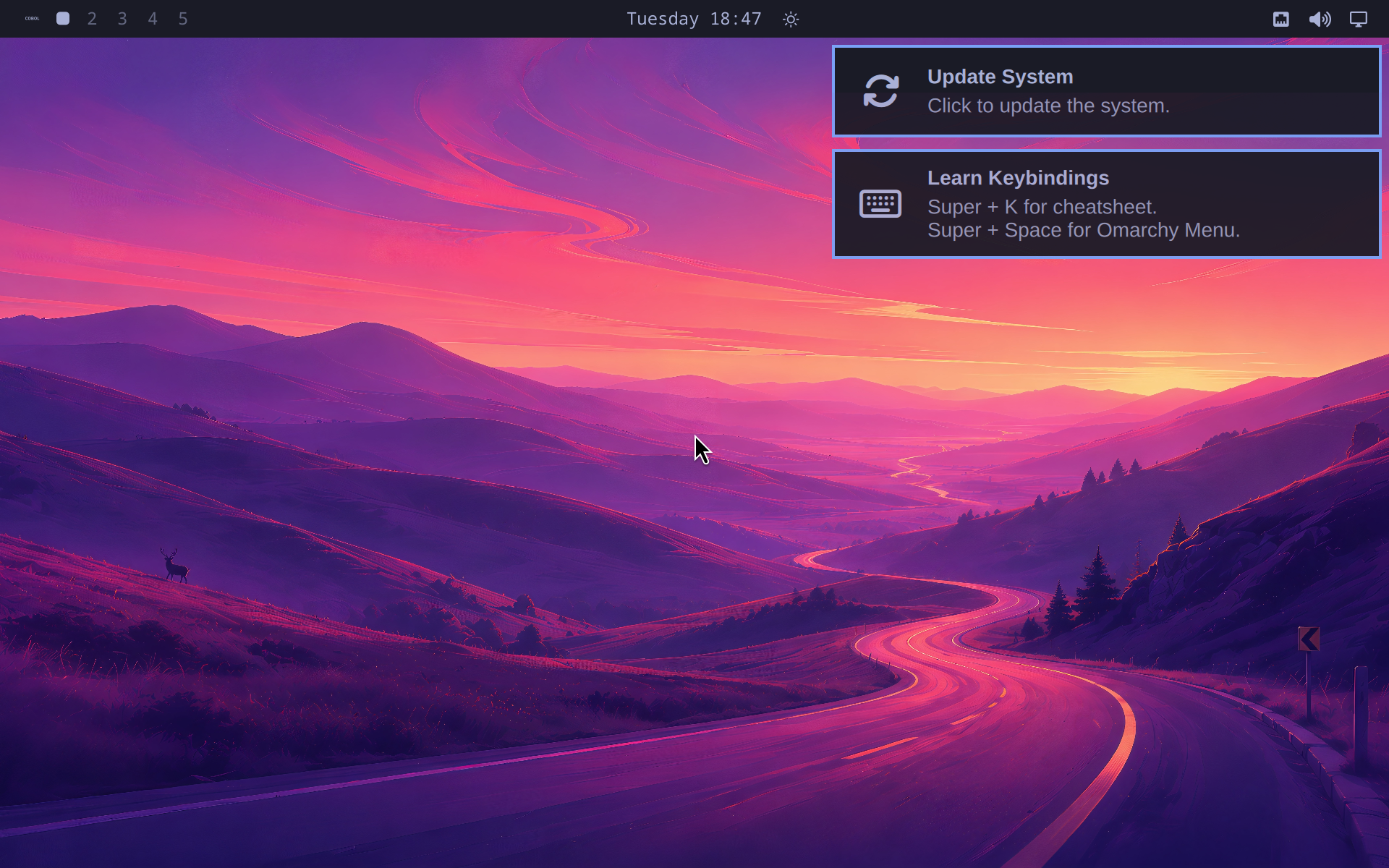
You can run the official Omarchy 4.0.1 source in an ARM64 Linux VM backed by Apple's Virtualization.framework. The tested VM boots into Hyprland, renders the Omarchy shell, accepts keyboard and pointer input, runs native ARM64 applications, and translates self-contained x86-64 Linux programs with Rosetta.

Experimental compatibility install

This is official Omarchy source installed on an Arch Linux ARM base. It is not an official Omarchy ARM64 release, and it does not use Omarchy's stock ISO installer. The published Omarchy ISO and package repository are x86-64-only.

Omarchy running in an ARM64 Lume VM

Before you start#

You need:

  • an Apple Silicon Mac running macOS 13 or later;
  • at least 50 GiB of free disk space;
  • Lume 0.5.3 or later; and
  • GnuPG and a BLAKE2b-512 checksum tool for installer verification.

The tested VM used eight virtual CPUs, 8 GiB of memory, an 80 GiB disk, Arch Linux ARM kernel 7.2.0-2-aarch64-ARCH, and Omarchy tag v4.0.1. The tag resolves to source commit 13f18b2cb7286fb54f87daf571a031aa6af3d8f0.

Understand the limitations#

The tested installation has these known gaps:

  • Graphics use Mesa llvmpipe. OpenGL reports Accelerated: no, and Vulkan cannot enumerate a physical device.
  • Lume exposes a virtio-sound device, but the tested Arch Linux ARM kernel has CONFIG_SND_VIRTIO disabled. PipeWire therefore exposes only Dummy Output.
  • 27 package names from Omarchy's base set are absent from the tested ARM repositories. A follow-up audit found that 16 are packaging or substitution gaps, seven are plausible native source builds, one needs an alternative, and three are not useful in this VM. These paths are not yet E2E-validated.
  • Rosetta translates x86-64 user-space programs. It cannot boot the x86-64 Omarchy ISO, translate its kernel or bootloader, or supply missing x86-64 shared libraries.

Download and verify Archboot#

The official Omarchy ISO cannot boot an ARM64 VM. Download the tested ARM64 Archboot environment instead:

curl -fLO https://release.archboot.com/aarch64/2026.08/iso/archboot-2026.08.25-02.28-7.2.0-2-aarch64-ARCH-aarch64.iso
curl -fLO https://release.archboot.com/aarch64/2026.08/b2sum.txt
curl -fLO https://release.archboot.com/aarch64/2026.08/b2sum.txt.sig

Import the signing key, inspect its fingerprint, and verify the signed checksum file:

gpg --keyserver hkps://keyserver.ubuntu.com \
  --recv-keys 5B7E3FB71B7F10329A1C03AB771DF6627EDF681F
gpg --fingerprint 5B7E3FB71B7F10329A1C03AB771DF6627EDF681F
gpg --verify b2sum.txt.sig b2sum.txt

The tested signature was valid for Tobias Powalowski's key with fingerprint 5B7E 3FB7 1B7F 1032 9A1C 03AB 771D F662 7EDF 681F. Importing a key from a keyserver does not establish its identity. Verify the fingerprint through an independent Archboot or Arch Linux channel before trusting it.

Verify the ISO against the signed file:

b2sum archboot-2026.08.25-02.28-7.2.0-2-aarch64-ARCH-aarch64.iso

The tested BLAKE2b-512 digest is:

562bd4c54d879d7d2b80f565186b3804456f99a6e3913f7eda7bf9b0e9f132d6e9fcbd083998cb3dcbbf065528a2a404c4ce6151f90b3228dade788237ae1bc7

Create and boot the VM#

Create a blank ARM64 Linux VM:

lume create omarchy-arm64 \
  --os linux \
  --cpu 8 \
  --memory 8GB \
  --disk-size 80GB \
  --display 1920x1200

Boot the Archboot ISO and open its display:

lume run omarchy-arm64 \
  --mount "$PWD/archboot-2026.08.25-02.28-7.2.0-2-aarch64-ARCH-aarch64.iso" \
  --display vnc

Wait for networking, then open a root shell in Archboot.

Install Arch Linux ARM#

Download the companion installation script inside the Archboot shell:

curl -fLO https://raw.githubusercontent.com/trycua/cua/main/docs/public/scripts/omarchy-arm64-lume/install-arch.sh
chmod +x install-arch.sh
TIMEZONE=UTC ./install-arch.sh /dev/vda
The script erases the VM disk

install-arch.sh repartitions and formats all of /dev/vda. Run it only in the new Lume VM. The script rejects other disk names and requires you to type ERASE before it proceeds.

Replace UTC with a valid name from /usr/share/zoneinfo if needed. The script installs archlinuxarm-keyring with the base system because the ARM repositories use their own signing keys.

Set a password for the desktop user, unmount the installed system, and turn off the guest:

arch-chroot /mnt passwd omarchy
umount -R /mnt
poweroff

Boot the VM without the ISO, then sign in as omarchy on the text console:

lume run omarchy-arm64 --display vnc

Install the pinned Omarchy source#

Download and run the compatibility installer in the ARM64 guest:

curl -fLO https://raw.githubusercontent.com/trycua/cua/main/docs/public/scripts/omarchy-arm64-lume/install-omarchy.sh
chmod +x install-omarchy.sh
sudo ./install-omarchy.sh
sudo reboot

The script installs the tested native ARM64 package subset, checks out official Omarchy source commit 13f18b2cb7286fb54f87daf571a031aa6af3d8f0, installs the desktop configuration, and forces Hyprland onto its software-rendering path. The guest should reboot directly into the Omarchy desktop.

Enable Rosetta translation#

Optional: If Rosetta is installed on the macOS host, Lume 0.5.3 attaches its translator as a rosetta virtiofs share. Mount the share and register it with Linux binfmt_misc:

curl -fLO https://raw.githubusercontent.com/trycua/cua/main/docs/public/scripts/omarchy-arm64-lume/enable-rosetta.sh
chmod +x enable-rosetta.sh
sudo ./enable-rosetta.sh
sudo reboot

Verify transparent translation with the tested, self-contained x86-64 BusyBox binary:

curl -fsSL \
  https://busybox.net/downloads/binaries/1.35.0-x86_64-linux-musl/busybox \
  -o /tmp/busybox-x86_64
 
echo '6e123e7f3202a8c1e9b1f94d8941580a25135382b99e8d3e34fb858bba311348  /tmp/busybox-x86_64' \
  | sha256sum -c -
 
chmod +x /tmp/busybox-x86_64
file /tmp/busybox-x86_64
/tmp/busybox-x86_64 uname -m

The final command should print x86_64. Dynamically linked x86-64 programs also need compatible x86-64 libraries. Rosetta provides translation, not a complete x86-64 Linux filesystem.

Verify the installation#

Check the architecture, kernel, desktop processes, pinned source, and network:

uname -m
uname -r
pgrep -a Hyprland
pgrep -a quickshell
sudo git -C /usr/share/omarchy rev-parse HEAD
curl -fsSI https://example.com | sed -n '1p'

The tested VM reports aarch64, runs Hyprland and Quickshell, returns the pinned Omarchy commit, and receives an HTTP success response. Keyboard and pointer input also work through Lume's VNC display.

Text entered into Foot through the Lume VNC display

Native ARM64 Chromium can load HTTPS pages:

Chromium loading example.com in the Omarchy VM

Inspect graphics and audio#

Inspect the graphics path from a terminal in the desktop session:

glxinfo -B
vulkaninfo --summary

The tested VM reports software rendering through llvmpipe, no acceleration, and ERROR_INITIALIZATION_FAILED when Vulkan tries to enumerate a device.

Inspect audio support:

wpctl status
aplay -l
zgrep CONFIG_SND_VIRTIO /proc/config.gz

The tested kernel reports # CONFIG_SND_VIRTIO is not set, ALSA finds no sound cards, and PipeWire exposes only Dummy Output. A guest kernel built with CONFIG_SND_VIRTIO is the likely path to audio support because Lume attaches a virtio-sound PCI device.

Review package compatibility#

The compatibility installer records the 27 package names that were absent from the tested repositories in /var/log/omarchy-v4.0.1-unavailable-arm64-packages.txt:

cat /var/log/omarchy-v4.0.1-unavailable-arm64-packages.txt

The raw count does not represent 27 hard blockers. An August 26, 2026 source and package-metadata audit produced these categories:

CategoryCountPackagesAssessment
Packaging or substitution16aether, cliamp, dotnet-runtime, herdr, hyprland-preview-share-picker, localsend, mise-bin, nvim, omarchy-nvim, tobi-try, ttf-ia-writer, ttf-jetbrains-mono-nerd-basic, ufw-docker, xdg-terminal-exec, yaru-icon-theme, yayUpstream recipes or releases declare ARM64 support, the package is architecture-independent, or a native substitute already exists. nvim is covered by the installed neovim package.
Native source-build candidate7omacalc, omacut, omawrite, pinta, tensaku, ttfx, tzupdateTheir C++, .NET, or Rust sources are plausible ARM64 builds, but their current Omarchy or AUR package is x86-64-only or has an ARM64 dependency gap. Each still needs a reproducible build and runtime test.
Alternative needed1obsidianObsidian does not publish a native Linux ARM64 desktop artifact. Use its web app, another Markdown editor, or test the x86-64 app with Rosetta and a compatible x86-64 userspace.
Defer for this VM3asdcontrol, obs-studio, qemu-user-static-binfmtasdcontrol targets physical Apple displays; Rosetta covers the tested x86-64 translation use case instead of QEMU; and OBS is not useful here until accelerated graphics and audio work.

The low-risk group is based on package metadata, not a completed install matrix. For example, current AUR recipes for aether, cliamp, herdr, hyprland-preview-share-picker, localsend, mise-bin, and yay explicitly include aarch64; several font, configuration, and shell packages declare any; and Microsoft publishes a Linux ARM64 .NET runtime. Omarchy's package repository itself still has no aarch64 database, so these packages need an ARM64 build channel or installation path before this guide can include them by default.

Do not install arbitrary x86-64 packages into the ARM root filesystem. Add one package at a time, preserve its source and license, and verify its desktop integration after installation.

What you built#

The result is a reboot-persistent Omarchy desktop with native ARM64 applications and optional x86-64 user-space translation. Its provenance is official Omarchy 4.0.1 source pinned to a specific commit and adapted onto an Arch Linux ARM base. It remains an experimental compatibility installation with software-only graphics, no audio on the tested kernel, and incomplete package integration.