

Quickstart
Run a Cua Bench registry taskset on a local desktop sandbox, read the score, run it with an agent, then create and score your own task.
Run a ready-made taskset from the Cua Bench registry on your machine, read the score, and hand it to an agent. Then create a small task of your own. You need no API key until you run an agent.
Before you start#
- Python 3.12 or 3.13 and uv.
- A local container runtime: Docker, plus gVisor when installed. Check it with
the
cuaCLI:
cua runtime doctorInstall#
uv tool install cua-benchThis puts the cb command on your PATH. cb --help lists its command
groups, including run, interact, task and trace.
Run a registry taskset#
List the tasksets, then run one task of cua-bench-basic with its oracle. The
oracle is the task's built-in solution:
cb dataset list
cb run cua-bench-basic --task-filter click-button --max-variants 1
cb fetches the taskset at its pinned version, starts a Linux desktop sandbox,
opens the task's app as a window on it, runs the oracle, scores the result
(reward=1) and releases the sandbox. If the oracle fails, the task or your
setup is broken, not the agent.
Read the results#
cb run list
cb run info <run-id>
Each variant's result.json, run.log and trajectory.json land in
~/.local/share/cua-bench/runs/<run-id>/, next to a summary.json.
Run it with an agent#
cb run cua-bench-basic --agent cua-agent --model anthropic/claude-sonnet-4-20250514 -j 4This runs every task on your machine. --on local is the default, and --kind,
--runtime, --image, --cpu and --memory shape the sandboxes.
Create your own task#
A task has variants (the same goal asked in different ways), a setup function, an oracle and an evaluator. The same evaluator scores the oracle, you and an agent.
Scaffold it#
Create a working directory and scaffold a task in it:
mkdir cua-bench-tutorial && cd cua-bench-tutorial
cb task create first-task
Answer the prompts, for example:
Author name: Your name
Author email: you@example.com
License [MIT]:
Task description: Write a word to a file
Task difficulty (easy|medium|hard) [easy]:
Task category (e.g., grounding, software-engineering) [grounding]:
Tags (comma-separated): starter,linux
The scaffold is two files:
first-task/
├── main.py
└── pyproject.toml
main.py defines the whole task. The starter has two variants, each asking for
one word in /tmp/answer.txt, and four functions:
@cb.tasks_config(split="train")
def load(): ...        # the variants and the machine they run on (native Linux)

@cb.setup_task(split="train")
async def start(task_cfg, session): ...     # remove any old answer

@cb.solve_task(split="train")
async def solve(task_cfg, session): ...     # the oracle: write the right word

@cb.evaluate_task(split="train")
async def evaluate(task_cfg, session): ...  # 1.0 if the file holds the word
Inspect it#
cb task info first-task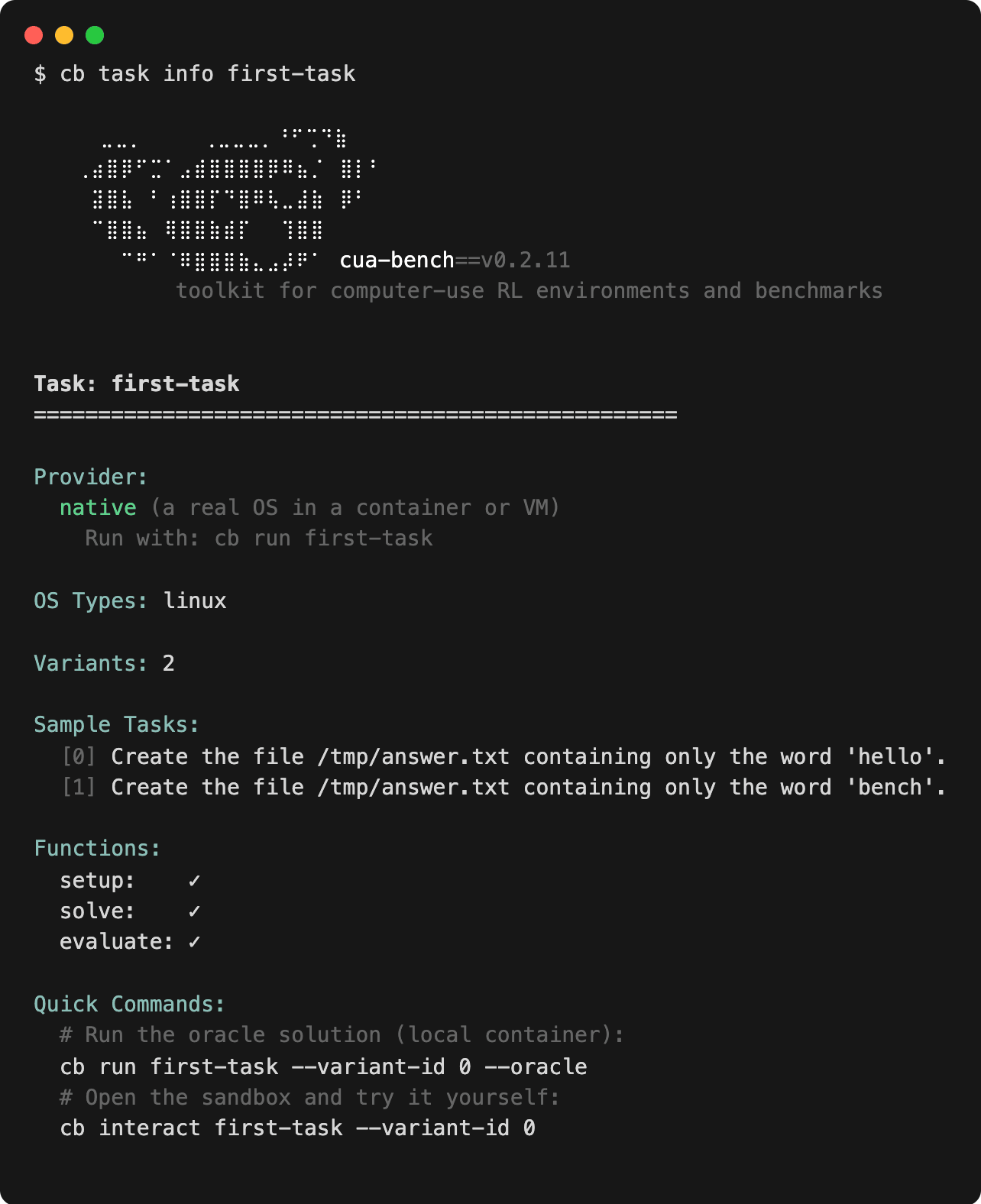
The provider is native: a real OS in a container or VM. The check marks mean
Cua Bench found the setup, solve and evaluate functions.
Run the oracle#
cb run first-task --variant-id 0 --oraclecb run starts a Linux sandbox, runs the setup, the oracle and the evaluator,
and releases the sandbox. It reports reward=1.
Solve it yourself#
Open the same variant without the oracle:
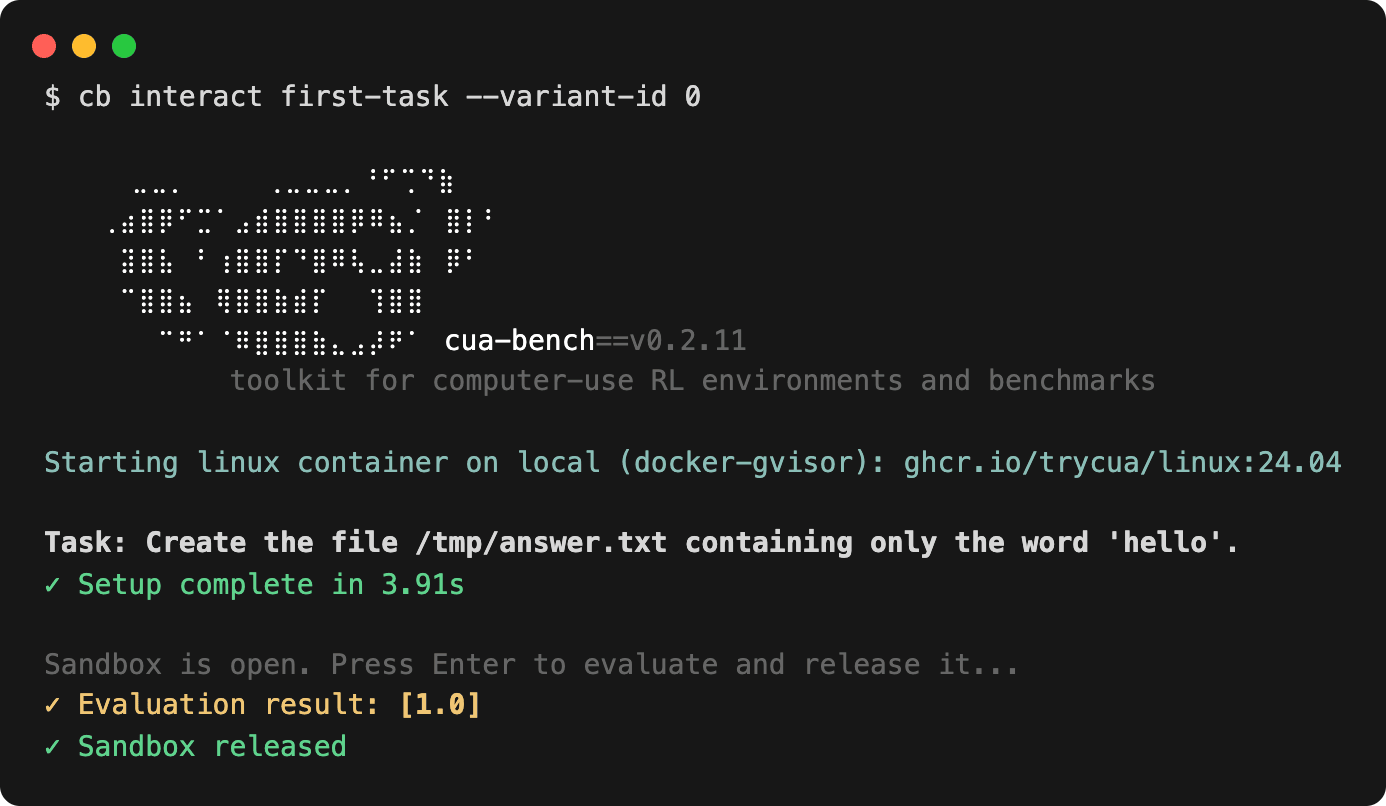
cb interact first-task --variant-id 0cb interact sets the task up, prints the sandbox's Display: link and opens
the viewer in your browser. Open a terminal on the sandbox desktop and write the
answer:
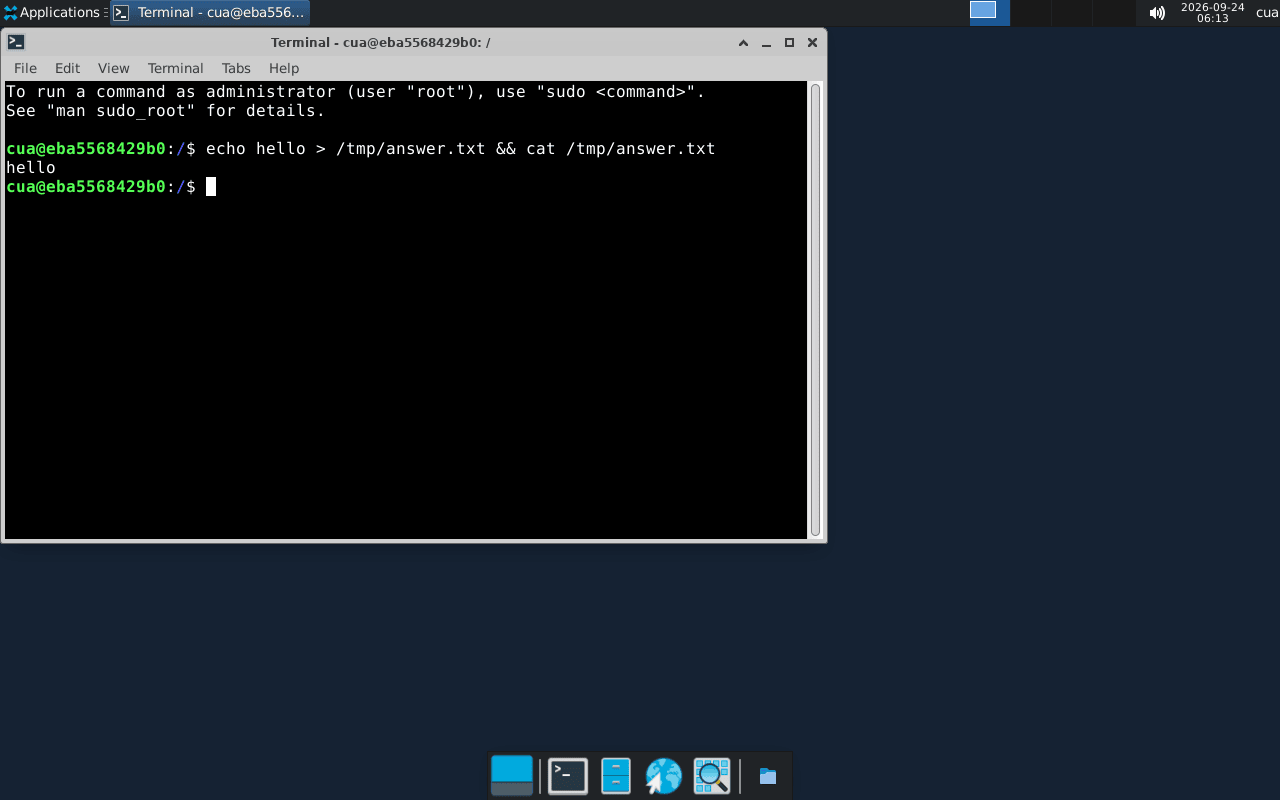
Go back to your terminal and press Enter. Cua Bench evaluates the sandbox and releases it:
Give it to an agent#
cb run first-task --agent cua-agent --model anthropic/claude-sonnet-4-20250514Clean up#
cd .. && rm -rf cua-bench-tutorialRun results stay in ~/.local/share/cua-bench/runs, and cb warns when they
pass 10 GiB (CUA_BENCH_WARN_SIZE). Keep fewer with --keep-runs N,
--max-age DAYS or --max-results-size SIZE on cb run, or:
cb prune --runs --keep 10Next#
- Run a benchmark: every registry taskset, selection, versions and pass@k.
- Write a task: richer setup, checks and HTML task windows.
- Adapter benchmarks: OSWorld-Verified and other adapters.
- Sandbox images: the benchmark images and how to start them.
- CLI reference