

Install
Register for a token, install Hoy with one command, approve the Hoy system extension in System Settings, and check your Mac with hoy doctor.
Hoy installs with one command. Copying Hoy.app into /Applications and turning
on its Endpoint Security extension need an administrator account. Everything
else goes under your home folder.
Requirements#
| Requirement | Detail |
|---|---|
| Mac | Apple silicon, M1 or later. Intel Macs are not supported. |
| macOS on the Mac | 26.x or 27.x. A newer macOS is untried, and hoy doctor warns. |
| macOS in the VMs | 26 and 27. Known versions: 26.5.2, 27.2 and 27.2.1. |
| Disk | 64 GiB free to make your first image (see below) |
| Network | Once, to download Apple's macOS restore image (20 to 26 GB, depending on the macOS version) from Apple |
| Account | A normal user to run Hoy, and an administrator account to install Hoy.app and approve the extension |
The 64 GiB is Apple's restore image (19.8 GB for macOS 26.5.2, 25.6 GB for
macOS 27.2.1), the image itself (about 27 GiB) and 13 GiB for your first VMs.
hoy doctor and hoy image create check this before they download anything
and say how much to free. Each further image takes about 27 GiB, and each VM
grows with what the guest writes.
Register for a token#
Register at hoy.cua.ai. We email you an install command with your own download token in it. The token is sent to the download server in a header. It is never put in a URL and never printed.
The installer turns on crash reports and basic usage data, both on by default. Each has its own switch, and turning either off changes no feature. See License and data.
Install#
Run the command from the email. It has this shape:
curl -fsSL https://hoy.cua.ai/install.sh | HOY_TOKEN=... bashReplace ... with your token. The installer:
- checks that this is an Apple silicon Mac on macOS 26 or later;
- downloads the release with your token and checks its SHA-256;
- checks Apple's notarization and Cua's signature on the download and on every program in it;
- only then installs, and installs nothing if a check fails.
It installs:
- the
hoycommand in~/.local/binand the release in~/.local/hoy; - Hoy.app in
/Applications, which carries the Hoy system extension (see the next section); - the Hoy background service, as a login item named Hoy.
It also puts ~/.local/bin on your PATH for new terminals. It writes
~/.local/hoy/env and adds one line that sources it to ~/.zshenv, ~/.bashrc
and ~/.bash_profile (or ~/.profile if you have no ~/.bash_profile). Open a
new terminal window afterwards, or run . ~/.local/hoy/env in the current one.
Options go after sh -s --:
curl -fsSL https://hoy.cua.ai/install.sh | HOY_TOKEN=... bash -s -- --version <version>| Option | Effect |
|---|---|
--install-dir DIR | Put the hoy command in DIR instead of ~/.local/bin |
--no-background-service | Do not set up the background service's login item. Start it later with hoy-install.sh --launchagent |
--no-modify-path | Do not touch your shell startup files. Put ~/.local/bin on your PATH yourself |
--version V | Install release V instead of the latest |
--help | List the options |
If you installed from the DMG there is no saved token, and hoy doctor ends
with an info: line saying Hoy cannot check for updates. Nothing is wrong with
the Mac. Download new releases from the Hoy download page.
To check from the Mac too, save your download token once:
HOY_TOKEN=<your token> hoy update --check.
If the installer says your token has expired or was revoked, sign in at hoy.cua.ai, renew the token and run the new command. Hoy that is already installed, and VMs that are running, are not affected.
Approve the Hoy system extension#
Hoy requires its Endpoint Security extension. It keeps the Mac within Apple's
limit of two macOS VMs (see Limits). macOS only
runs a system extension that comes inside an app in /Applications, so the
installer copies Hoy.app there. That needs an administrator account. If it
cannot, it prints the one command to run.
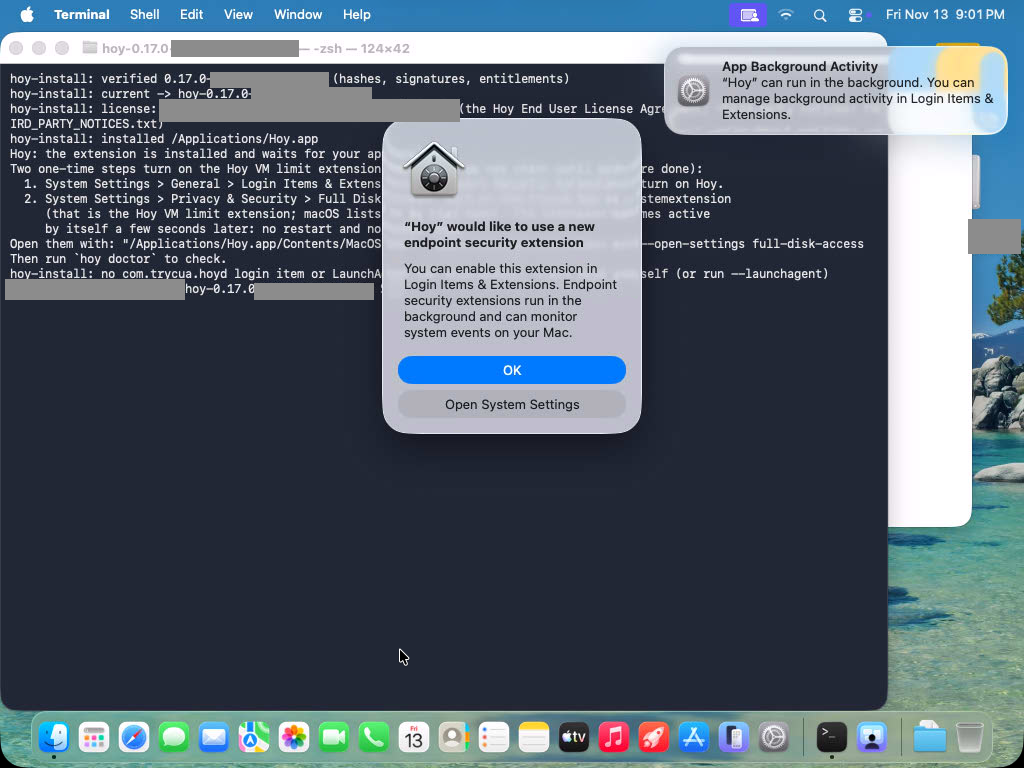
The installer then asks macOS to turn the extension on. You see these prompts, and two one-time switches finish the job:
-
A "System Extension Blocked" prompt (or "Hoy would like to add a system extension"). Click the button that opens System Settings.
-
In System Settings > General > Login Items & Extensions, scroll to the bottom. The page opens at the top, and the Endpoint Security switch is at the very end: under By Category, click the (i) next to Endpoint Security Extensions, then turn on Hoy (administrator password).
Hoy --open-settings extensionsopens the top of this page only.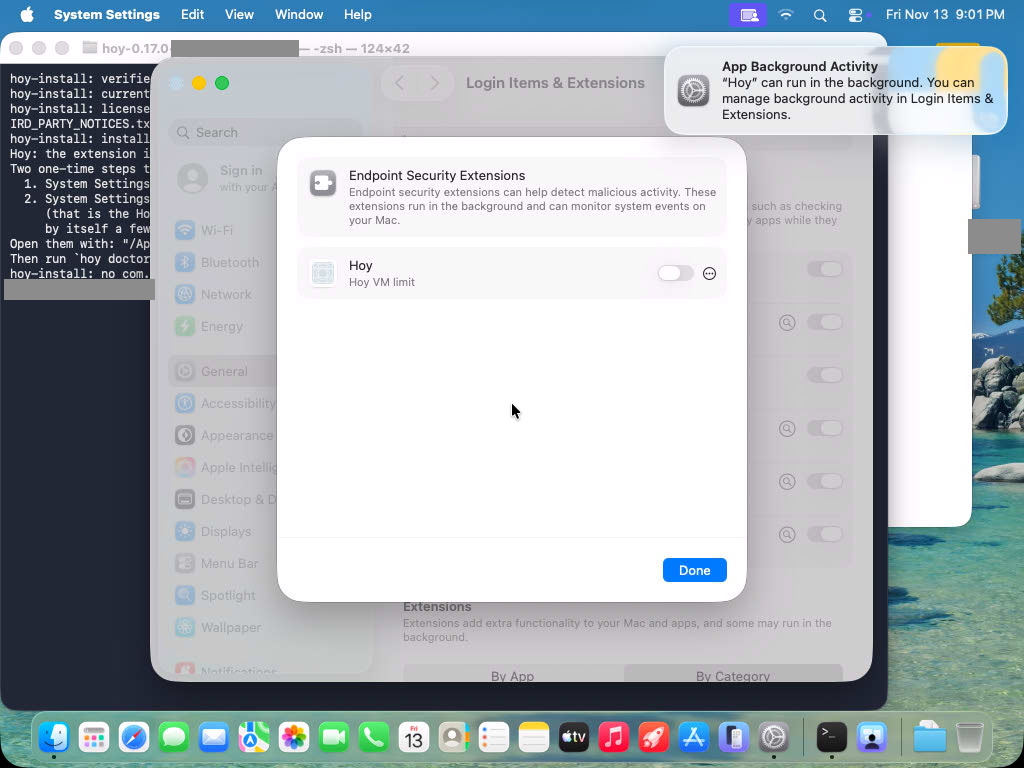
-
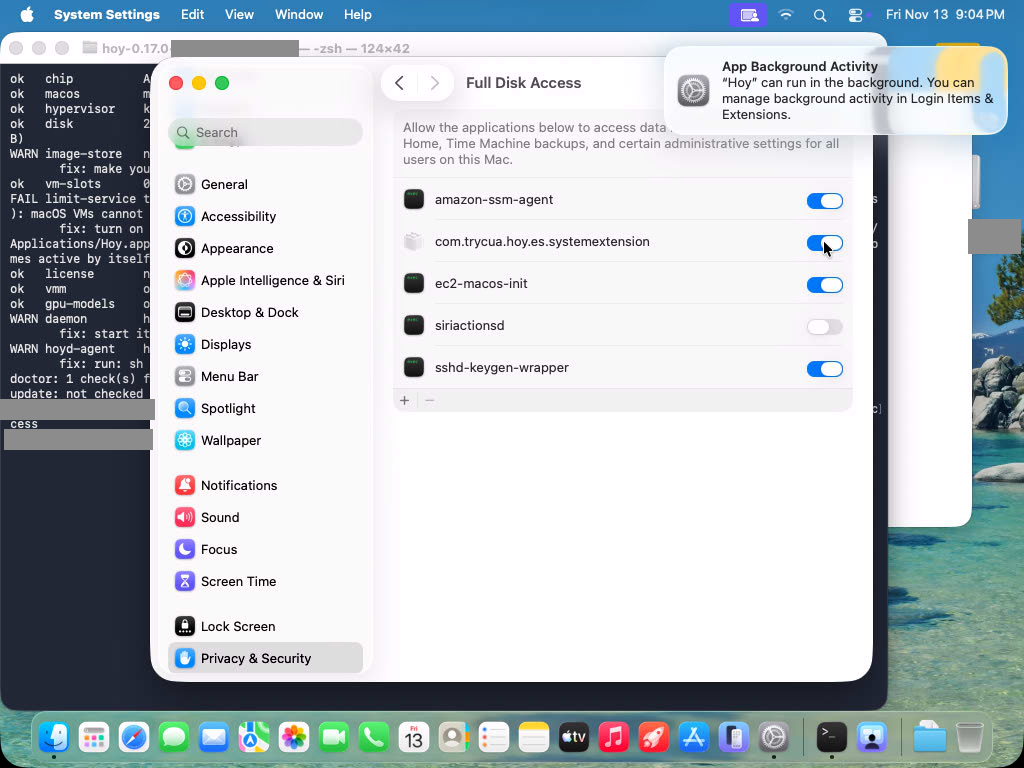
In System Settings > Privacy & Security > Full Disk Access, turn on the Hoy entry (administrator password). On macOS 27 the list shows it as Hoy. On macOS 26 this page lists it by its file name, com.trycua.hoy.es.systemextension. Either way it is the Hoy system extension. macOS requires Full Disk Access of every Endpoint Security extension. It applies to the extension only: the
hoycommand and the background service do not get Full Disk Access.The extension activates on its own a few seconds after you turn this on. You don't need to restart anything, run the installer again or enter another password.
Two commands open those pages for you:
"/Applications/Hoy.app/Contents/MacOS/Hoy" --open-settings
"/Applications/Hoy.app/Contents/MacOS/Hoy" --open-settings full-disk-access
Until both switches are on, macOS VMs do not start. hoy start is refused with
exit code 5 and "reason": "limit_service_inactive" in --json output. Linux
VMs and other apps are not affected. hoy doctor says which step is missing:
limit-service is the first switch (the extension is approved) and
full-disk-access is the second. Updates replace the extension in place and need no new
approval.
Managed Macs#
An MDM profile can approve both switches ahead of time:
- a System Extension Policy for team
YCK386LBJ7and extensioncom.trycua.hoy.es; - a Privacy Preferences Policy Control payload that grants the extension
SystemPolicyAllFiles.
A Service Management managed login items payload with the rule "team identifier
YCK386LBJ7" keeps the Hoy login item on, so users cannot turn it off.
The Hoy login item#
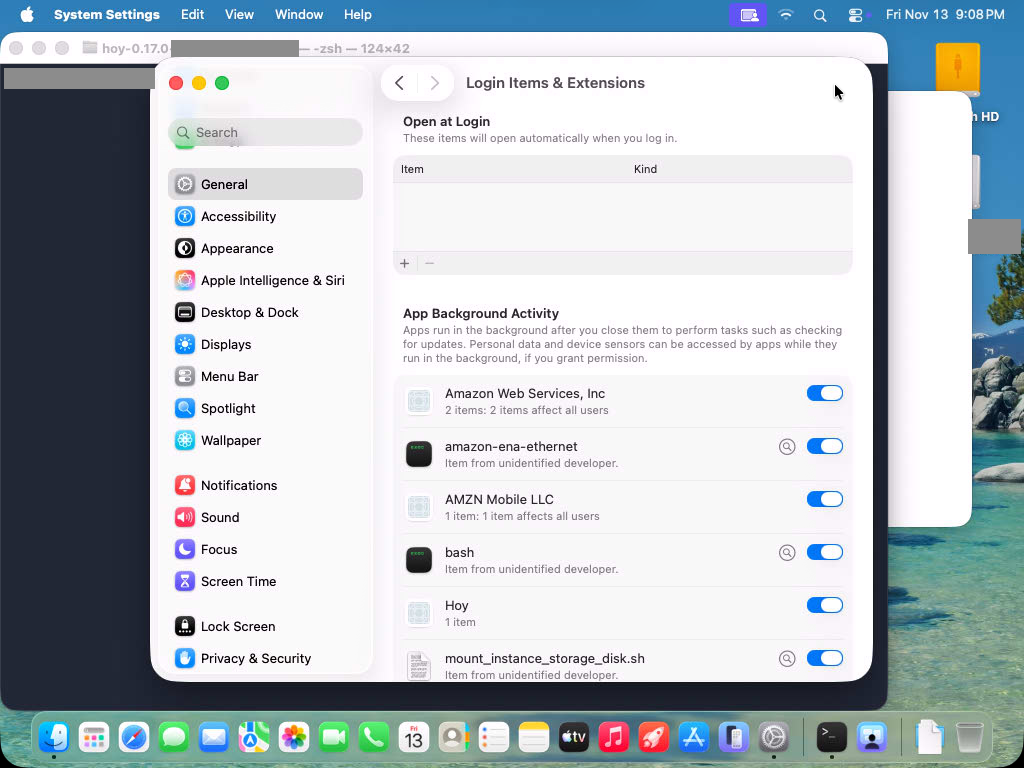
Hoy.app registers its background service as a standard macOS login item. System Settings lists it
as Hoy under Allow in the Background in General > Login Items & Extensions,
and macOS may show a "Background Items Added" (or "App Background Activity")
notification when it is set up. Leave it on. If you turn it off, the service does not
start at login, and hoy doctor says so.
To see what macOS has registered, or to open the page again:
"/Applications/Hoy.app/Contents/MacOS/Hoy" --agent-status
"/Applications/Hoy.app/Contents/MacOS/Hoy" --open-settings login-items
The login item runs in your desktop login session, so install while you are
logged in at the desktop (or over Screen Sharing). The program itself stays in
~/.local/hoy. On a cloud Mac with no desktop login, see
Installing on a headless or cloud Mac.
Installing on a headless or cloud Mac#
Approving the extension and Full Disk Access needs a desktop (GUI) login session: both switches live in System Settings and each asks an administrator for a password. A cloud Mac (for example an AWS EC2 Mac) that nobody has ever logged in to at the desktop has no such session, so the install cannot finish by itself over ssh. The installer still succeeds and copies Hoy.app; the two approvals are the part that needs a screen. Do them once per Mac:
-
Install as usual over ssh (the install command above). The install itself takes seconds. Until the approvals are done,
hoy doctorfailslimit-serviceand macOS VMs do not start. -
Give the operator account a temporary password (a cloud Mac often has none), and keep it out of shell history and logs:
sudo dscl . -passwd /Users/operatorType a long random password at the prompts. (If the account already has a password, dscl asks for the old one first.) The account must be an administrator, because both approvals ask for an administrator password.
-
Turn on Screen Sharing and reach it through an ssh tunnel, so port 5900 is never exposed to the network:
sudo launchctl enable system/com.apple.screensharing
sudo launchctl bootstrap system /System/Library/LaunchDaemons/com.apple.screensharing.plist
Then, from your own computer,
ssh -N -L 5900:127.0.0.1:5900 <host>and openvnc://localhost:5900(Screen Sharing on a Mac, or any VNC client). Sign in as the operator account. -
Log in once. The first login runs macOS's Setup Assistant (Accessibility, Apple Account, Analytics, Screen Time and so on; about 3 minutes on macOS 27). That is macOS, not Hoy. Skip what you can. If a disk-unlock dialog for a local instance-store volume appears, cancel it.
-
Approve. The Hoy extension prompt may already be waiting at the login window. Follow the two switches in "Approve the Hoy system extension" above (about 2.5 minutes, two administrator password prompts). Then run
hoy doctorin a terminal inside that session or over ssh:limit-serviceandfull-disk-accessare ok within seconds. -
Start the background service if you installed over ssh:
sh ~/.local/hoy/current/hoy-install.sh --launchagent(the login item), andhoy health. -
Close the door again. Turn Screen Sharing off, stop the tunnel and rotate the password to a new random value (or lock it, if you will only use ssh keys):
sudo launchctl bootout system/com.apple.screensharing
sudo launchctl disable system/com.apple.screensharing
sudo dscl . -passwd /Users/operator
Check that port 5900 no longer answers.
After a reboot Hoy's background service needs a GUI session again: it is the login item of the operator's desktop session, so with nobody
logged in it does not start. Either log in again over Screen Sharing, set "Automatically log in as" to the operator
account (FileVault off; see "Macs where nobody logs in" below), or run the opt-in --system-daemon. The
approvals from step 5 are kept across reboots and updates; you do not repeat them.
For many Macs, push the approvals ahead of time with an MDM profile (see Managed Macs) so nobody has to log in at a desktop. The profile is the only unattended way to approve the two switches: macOS does not let a script turn them on.
Macs where nobody logs in#
Running VMs on a Mac with nobody logged in at the desktop has not been validated. Two setups exist:
-
Automatic login (the tested setup). In System Settings > Users & Groups, set "Automatically log in as" to the operator account (FileVault must be off), then install as above. The login item starts the service at every boot.
-
System daemon (opt-in). As an administrator, after installing as the operator account:
sudo sh ~operator/.local/hoy/current/hoy-install.sh --system-daemon --user operatorThis runs that account's Hoy service at boot with nobody logged in. The login item stands down while it exists. After an install or
hoy update, restart it by running the same--system-daemoncommand again.--system-daemon --removeremoves it. The uninstaller refuses to run while it exists.
Setup checklist: what macOS asks for, when and why#
hoy doctor shows one line for each switch, so you can see which one is left.
| Doctor line | What you do | When | Why |
|---|---|---|---|
limit-service | Scroll to the bottom of Login Items & Extensions, click the (i) next to Endpoint Security Extensions (under By Category), and turn on Hoy | Right after the install | Approves the Hoy system extension, which keeps the Mac within Apple's limit of two macOS VMs |
full-disk-access | Turn on Hoy (macOS 27) or com.trycua.hoy.es.systemextension (macOS 26) under Full Disk Access | Right after the line above | macOS requires it of every Endpoint Security extension. The extension turns on by itself a few seconds later |
daemon | Nothing, unless doctor says Hoy's login item is off: then turn on Hoy under Allow in the Background | At install | Hoy's background service owns your VMs. It starts at login |
local-network | Click Allow if macOS asks to let Hoy's background service find devices on local networks. If you chose Don't Allow, turn on Hoy's background service under Privacy & Security > Local Network | The first time you start a VM made from an older image (made by a Hoy before this release). Never for new images | Older images are reached at the VM's private network address, which macOS counts as the local network. macOS asks once and never again, so Don't Allow looks like a VM that never answers. Making a new image with hoy image create avoids it for good |
guest:<vm> | Nothing | Each running VM | Shows how Hoy reaches that VM: over its internal channel, or at its network address (the case that needs Local Network) |
The installer does not trigger the Local Network prompt. No VM exists yet to
explain it, and VMs from new images never need it. hoy doctor lists any
running VM that does.
Check your Mac#
hoy doctorhoy doctor checks the chip, the macOS version, Hypervisor support, free disk,
how many macOS VMs already run on the Mac, the Hoy system extension and its
Full Disk Access (two lines), Hoy's background service and its login item, Local
Network access and how each running VM is reached, and the other Hoy components.
It prints a fix under each problem. An info: line at the end says whether Hoy
can check for updates. It never makes the Mac "not ready". It
exits 0 when the Mac is ready (warnings are fine) and 5 when a check failed.
Before your first image, "no image store" is expected. hoy --version prints
the Hoy version; include it in any bug report.
Prompts you will see#
- The "System Extension Blocked" prompt and the two switches above.
- The "Background Items Added" notification for Hoy.
- An administrator password when the installer copies Hoy.app, once for each of the two switches above, and again when you uninstall.
- Screen Sharing asks for a password when
hoy vncorhoy start --windowopens a VM's desktop. Hoy has copied it to the clipboard: paste it with Command-V and press Return. - A Local Network prompt for Hoy's background service only for a VM made from an image from an earlier Hoy. See the setup checklist and Troubleshooting.
You do not need to install developer tools, Xcode, Homebrew or Python. Hoy asks for no Accessibility or Screen Recording permission.
Next#
- Quickstart: make an image and your first VM.
- Update and rollback
- Uninstall