Recipes
Real desktop workflows with Cua Driver, each with the prompt to give your agent and how to check the result.
Real desktop workflows with Cua Driver, each with the prompt to give your agent and how to check the result.
Each recipe assumes Cua Driver is installed and connected to your agent (Quickstart). The recorded ones ran on macOS with GPT-6 Astra + Cua Driver: selected gestures play at 1x; setup, waits, retries, and intervening edits are cut. They use foreground desktop input and fictional data, so run them on a desktop you are not using, or in a VM.
Cua Driver has no file or HTTP tools: an agent reads and writes files by driving apps (an editor, Terminal, a PDF viewer). To run many jobs in parallel, give each its own Cua Sandbox.
Agents operating desktop apps while the user's active window stays in place, recorded by the Cua team on the named platform.
Claude Code builds a WPF CRM, runs it, patches the code, and checks the app again.
An agent enters a monthly budget in Gnumeric on a remote machine with no attached display or GPU.
QGIS map and LibreOffice Writer handoff from eight fictional station observations. Inputs: stations.csv and campus.geojson.
Selected layout gestures in QGIS and inspection of the exported map in Chrome.
Use Cua Driver to build a fictional Morrow Field campus planning map in QGIS.
Preserve stations.csv and campus.geojson. Save new outputs in an output folder.

Import stations.csv as points: X = longitude, Y = latitude, source CRS EPSG:4326.
Import campus.geojson with the same source CRS. Set the project CRS to EPSG:3857
for a layout with distances in meters; do not relabel the source coordinates.

Use the field calculator to create status: READY when flow_lpm >= 2.0 AND
days_since_check <= 30; otherwise REVIEW. Compare the original numeric values
without rounding or recalculating elapsed days. Save an editable GeoPackage.

Style READY green and REVIEW amber, label all eight station IDs, and include
category names so the result does not rely on color alone. Select the REVIEW
features and confirm their IDs and count from the data.

Create one A4 landscape layout with a title, legend, north arrow, and meter scale
bar. Save a QGZ project with relative paths and export the map as a PDF.

In LibreOffice Writer, create a one-page handoff with the map, verified category
counts and REVIEW IDs, the classification rule, and the fictional-planning caveat.
Save the handoff as ODT and PDF. Reopen the project and inspect both exported PDFs
in Chrome or Preview. Report the saved files, completed checks, and any unresolved issue.
Keep the outputs local; do not send or publish them.
Check: R01 sits at longitude 0.00150, latitude 0.00440 (swapped axes
look plausible here). READY is R01–R04 and REVIEW is R05–R08; R08 fails on
flow 1.99. The map PDF is A4 landscape with all eight labels, legend, north
arrow, and scale bar.
A review copy of a fictional two-page proof in Preview, plus a Writer handoff. Input: willowfen-vendor-proof-SOURCE.pdf.
Selected redaction and annotation steps in Preview.
Use Cua Driver to prepare a local review copy of willowfen-vendor-proof-SOURCE.pdf
in Preview. Preserve the original. Duplicate it before editing, and confirm that
the active document is the copy before applying any irreversible redaction.

Use Preview's actual Redact tool to remove the complete line below each marker:
- Page 1, R1: Supplier cost.
- Page 1, R2: Internal reference.
- Page 2, R3: Supplier contact.
- Page 2, R4: Internal contingency.
The R1-R4 markers may remain. Do not substitute shapes or highlights for Redact.
If Redact is unavailable, stop and report the limitation.

Keep the title, date, time, location, participant count, public fee, materials,
booking address, schedule, access notes, and complete room diagram. Add REVIEW
COPY in page 1's outlined annotation area without covering other text. Save as
willowfen-vendor-proof-REVIEW.pdf, then close and reopen it in Preview.

In LibreOffice Writer, create a one-page handoff with the workshop title,
review-only status, source and review filenames, the four removed categories
without their values, retained public facts, page count, and verification results.
Save willowfen-release-handoff.odt and export willowfen-release-handoff.pdf.

Inspect both review PDF pages and the handoff PDF in Preview. Report the files
and the checks that passed. If extraction has not been checked, state that it
remains unverified. Keep all outputs local; do not send or publish them.
Check: the source hash is unchanged; the four target lines are gone from
the rendered pages and from pdftotext output. Extraction alone is not proof:
a black box can hide text that is still recoverable.
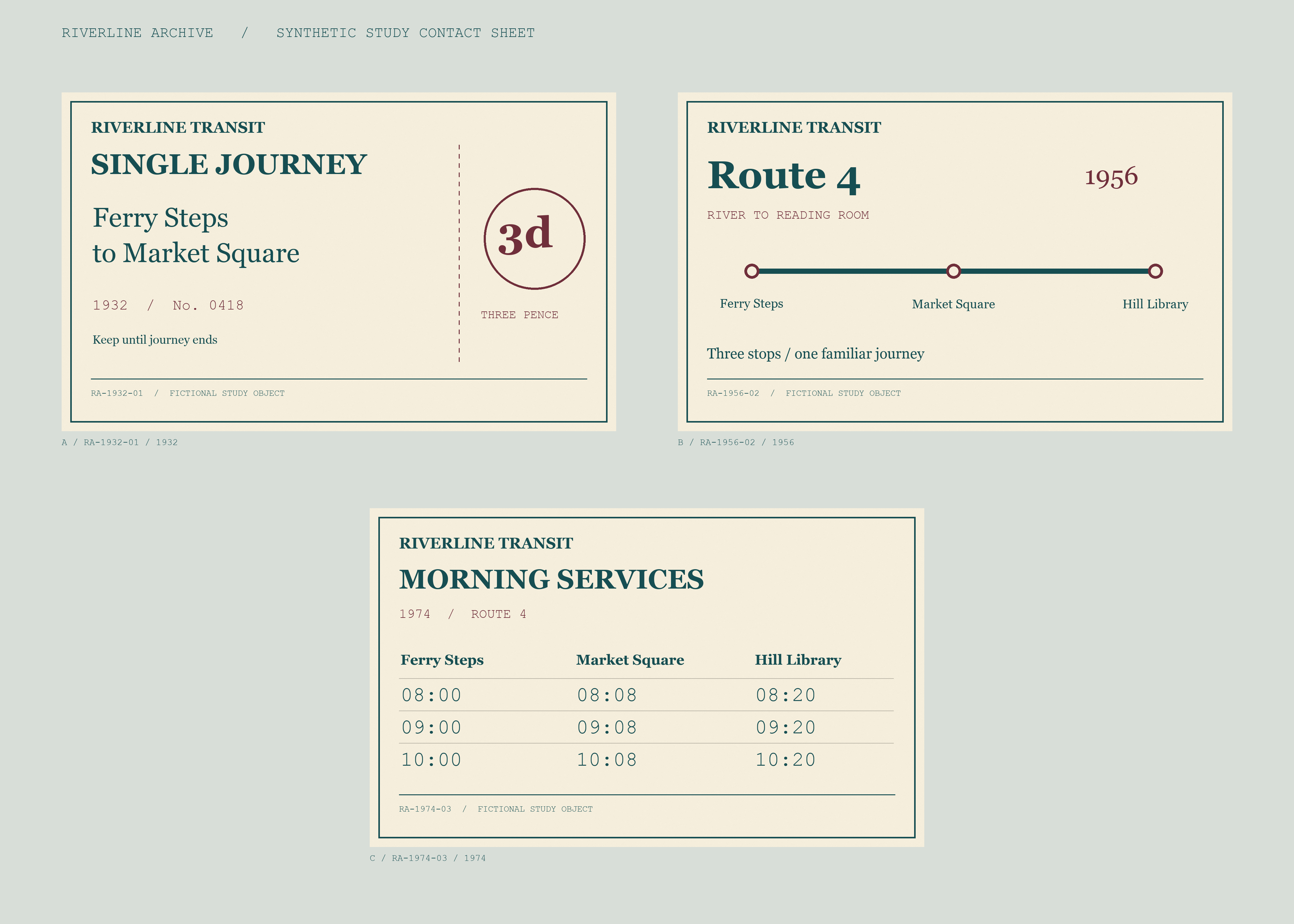
Crop a fictional archive ticket in GIMP, build two editable A4 panels in Inkscape, and a two-page installation packet in Writer. Inputs: archive-contact-sheet.png and panel-starter.svg.
Selected image and panel edits in GIMP and Inkscape.
Give the agent this caption table with the prompt:
| Station | Object ID | Year | Caption |
|---|---|---|---|
| A | RA-1932-01 | 1932 | A three-pence ticket links Ferry Steps and Market Square. |
| B | RA-1956-02 | 1956 | Route 4 connects Ferry Steps, Market Square, and Hill Library. |
| C | RA-1974-03 | 1974 | Three morning departures make the same journey in twenty minutes. |
Use Cua Driver to prepare a fictional Riverline Archive / Everyday Journeys
exhibition. Preserve both source files and save new work in an output folder.

In GIMP, crop the ticket from archive-contact-sheet.png: top-left origin,
X = 200, Y = 300, width = 1800, height = 1100 pixels. Retain all ticket text;
do not scale or retouch it. Save riverline-hero.xcf and export riverline-hero.png.

In Inkscape, use panel-starter.svg to create two A4 landscape panels. Keep text
editable, content inside the 15 mm safe margin, body text at least 24 pt, and
headings at least 36 pt. Use teal #164E52, oxblood #702F3B, and ivory #F5EEDC.
The entry panel must say Riverline Archive, Everyday Journeys, START HERE,
A > B > C, and Fictional collection. The object key must include all three
stations, object IDs, years, and exact captions from the supplied table.
Save riverline-entry.svg and riverline-object-key.svg. Export each as PDF and
as a 1782 × 1260 PNG.

In LibreOffice Writer, create an A4 portrait installation packet with exactly
two pages and an explicit page break. Page 1 needs the exhibition title,
proportional ticket image, caption table, and fictional-collection notice.
Page 2 needs both panel images and this illustrative plan: a 3600 mm wall;
A, B, and C centered at 600, 1800, and 3000 mm from its left end; object centers
1400 mm high; label centers 1200 mm high; and 1500 mm of clear approach depth.
Place the entry panel left of A and the object key right of C. Include a checklist
to confirm object order, measure centers, keep the approach clear, proof labels,
and check glare. Label these as illustrative targets, not measured venue
conditions or formal accessibility compliance.

Save riverline-installation.odt and export riverline-installation.pdf. Reopen
the editable files in their apps and inspect the exported PDFs in Preview.
Report output files, completed checks, and unresolved issues. Keep the outputs
local; do not send or publish them.
Check: the XCF canvas is 1800 × 1100 with all ticket text; SVG text is still editable; the packet PDF has exactly two pages with every measurement.
macOS only (Numbers has no Linux or Windows version).
Using cua-driver, fetch the last 30 days of AAPL daily closing prices. Open Numbers, create a new spreadsheet, enter Date and Close columns, add a 2D line chart, then export the document as a PDF to ~/reports/aapl-analysis.pdf.The agent fetches data by driving Terminal (curl) or a browser, then drives
Numbers with launch_app, click, type_text, and set_value. Check:
open ~/reports/aapl-analysis.pdf and confirm the table and chart.
Run Cua Driver on the Windows machine inside the VPN, so the desktop session, app traffic, and files stay there.
Claude Code fills shipment details and prints receipts in a Windows desktop app with no API.
Confirm the driver sees the app first:
cua-driver call list_apps
cua-driver call list_windows
An empty [] means the driver is outside the interactive desktop; see
Windows over SSH. Stage
input files on that machine, then:
Open the payroll client, log in with the credentials in C:\creds.txt, create a new employee from new_hire.xlsx, generate the onboarding report, and export it as PDF to the Desktop.Log into LinkedIn or X yourself in the browser the agent will drive, keep the machine awake, and cap the run while testing:
Using cua-driver, open the browser to https://www.linkedin.com/mynetwork/invite-connect/connections/ .

For each of the first 50 connections:
1. Open the profile.
2. Read first name, last name, role, company, and profile URL.
3. Append one row to ~/contacts.csv.
4. Set met_at to "Google Devfest Toronto" for every row.

Use this CSV header:
first,last,role,company,met_at,linkedin

If a value is missing, leave that field empty and keep going.
Spot-check ~/contacts.csv in the morning before importing it anywhere.
The data stays on your machine: the agent opens the file in a viewer, reads it on screen, and types it into the form. Name the exact fields you want.
Open ~/Downloads/resume.pdf in the PDF viewer. Read the name, email,
phone, and work history. Then open
https://form.jotform.com/<your-form-id> in the browser, fill each matching
field from the PDF, and submit the form.
Watch the field mapping and correct it in plain language ("use the resume email for Work Email").