

Add a computer
Connect another Mac, Windows or Linux computer you own to Cua Spaces, so your agents and your other computers can use it. Also how to turn a spare Mac into a place that runs Spaces.
A computer you add runs Spaces for you. Once it is added, it shows up in Computers on all your computers, your agents can create Spaces on it, and you can open its desktop from anywhere, even when nobody is sitting at it. Cua doesn't rent computers: add a Mac on your desk, a spare box in the office, or a VM in your own cloud account. For a walkthrough of each, see Bring your own compute.
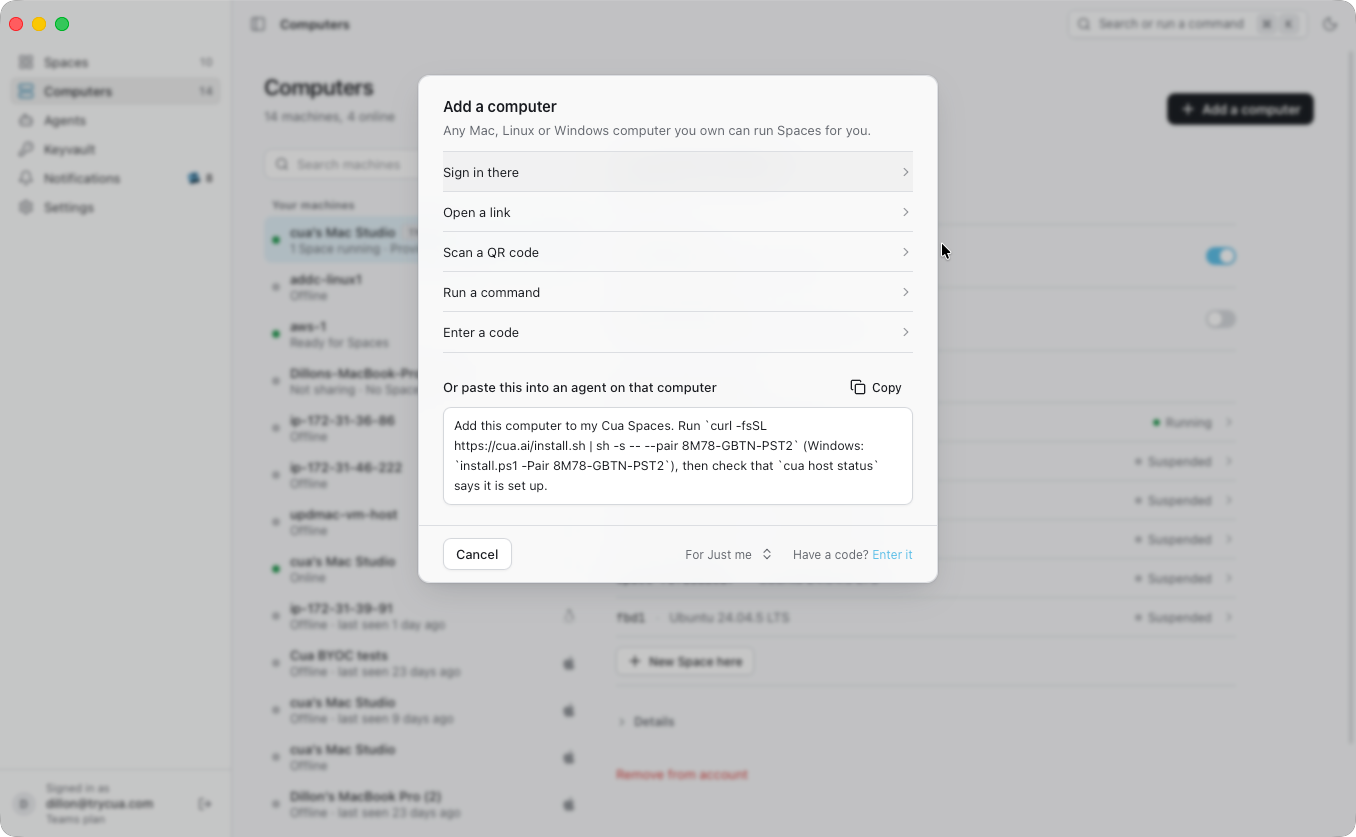
Add a computer from the app#
In Cua Spaces, open Computers and press Add a computer. You can also find it in the command palette. The sheet lists the ways to add one; pick the one that suits the other computer.
| Way | What to do on the other computer |
|---|---|
| Sign in there | Open https://cua.ai/install, install Cua Spaces and sign in with the same account. Signing in adds the computer. No code needed. |
| Open a link | Open the one-time link the sheet shows. The page gives the install command for that computer, which installs Cua Spaces and adds it. |
| Scan a QR code | Scan the code with that computer's camera. It opens the same link. |
| Run a command | Run the command in a terminal. macOS / Linux and Windows (preview) each have their own. |
| Enter a code | For a computer that already has Cua Spaces. There, open Add a computer, choose Have a code? Enter it and type the code. |
You can also paste the prompt under Or paste this into an agent on that computer into an AI agent running there. It carries the same one-time code.
The sheet waits for the computer and then says Added with its name, whichever way you used. The link, code, command and prompt work once and expire after 30 minutes. While the sheet is open they renew by themselves. The ⋯ menu shows how long the code has left, makes a new one, or revokes it.
If you are an owner or admin of a team on the Teams plan, choose the team next to For at the bottom of the sheet. See Team computers.
A cua://add/<code> link opens Enter a code with the code filled in. The
app asks before this computer joins.
Only use a code you made yourself. Joining adds the computer to the account that made the code, and that account can then reach it.
A computer added from this sheet, or by signing in, provides Spaces and keeps its screen private. Turn off Let other computers create Spaces here in Settings to stop it running Spaces for you, and turn on Let other computers control this desktop on its page under Computers to see and control its screen from your other computers. With both off, the computer simply isn't shared.
Add a computer from the web#
You can also start from your account page, with no app open. Sign in at app.cua.ai, open Computers (this guide calls them computers) and press Add with a pairing code. The page shows a one-time code, a link, a QR code and an install command for macOS, Linux and Windows (preview). Run the command in a terminal on the other computer, or open the link there. The new computer appears on the page when it is added. The code works once and expires in about 30 minutes.
Add a computer from a terminal#
If you can't use the link, set the computer up yourself:
- Install Cua Spaces on it. See Install.
- Sign in with the same account you use here. Signing in adds the computer to
that account. The installer does the same after it signs you in; add
--no-hostto sign in without adding the computer.
Or run this in a terminal on that computer:
cua host setup # signs in to cua.ai for this command if neededcua host setup installs cua-spacesd as a background service. By default it
joins the cua.ai relay with an outbound connection, as your account: no port
forwarding and no token to copy. Your other computers, once
you have added them to your account, then see the computer as
relay:<machine-id> in cua spaces ls and in the app.
The computer keeps only its own token. If it is not signed in, setup
signs you in for that one command and stores no session, so a dedicated host
holds no account credentials. The token lets the computer serve itself and stop
sharing. It can't list or reach your other computers, change who the computer is
shared with, or add computers to your account. Running setup again updates the configuration
and rotates the token.
| Option | Effect |
|---|---|
--remote | When sign-in is needed, print a sign-in code to approve in a browser on another computer (for example over SSH). The account session is not saved. Cannot be combined with --direct. |
--direct ip:port | Serve on your LAN (or a forwarded port) with a local env token instead of the relay. No account needed. |
--relay URL | Use a different relay (CUA_RELAY_URL). The default is https://relay.cua.ai. |
--name NAME | Display name (default: host name). |
--allow ACCOUNT | Also allow this account (id or email). Repeatable. |
--runner KIND | auto, systemd, launchd, windows-task or process. On Linux, auto uses systemd when it is running, otherwise process. |
--share desktop|spaces|both|none | What this computer shares: desktop (this desktop only), spaces (create Spaces for your computers and keep its own desktop private; see Use a spare Mac to host Spaces), both, or none (refused: there is nothing to share). Without it the desktop is shared, and a computer set up for the first time also provides Spaces; a computer set up before keeps its setting. cua host config changes it later. |
What each system needs#
| System | Service setup installs | Before the computer is reachable |
|---|---|---|
| macOS | LaunchAgent com.trycua.spacesd.host in your GUI session | Grant cua-spacesd Screen Recording and Accessibility in System Settings, and Cua Driver its own permissions. Setup can't do it for you. |
| Windows | Scheduled task Cua\SpacesdHost at logon, in your interactive session | Stay signed in and unlocked. After a restart, sign in once. |
| Linux | systemd unit cua-spacesd-host.service (user unit; system unit as root). Without systemd (a container, or WSL without systemd): a plain process, and setup warns about it. | With systemd, linger must be on or the service stops when your last login session ends: setup turns it on when it can, and cua host status and cua doctor give sudo loginctl enable-linger $USER when it could not. On a computer with no screen, see what a computer with no screen needs. A plain process does not come back after a reboot or a crash: turn on systemd and run cua host setup --runner systemd again with the same options, or run cua host start after each boot. |
cua host status shows the runner in use. Setup waits until your other computers can see this one, and says why if they can't.
Each Cua home has its own service names. A staging setup on the same computer uses Cua\SpacesdHost-staging on Windows, cua-spacesd-host-staging.service on Linux and com.trycua.spacesd.host-staging on macOS, so it never stops or replaces your production host.
On Windows the host runs in your signed-in session, so your computers reach the desktop only while it is signed in, unlocked and on screen:
- After a restart, sign in once (or turn on automatic sign-in). The host starts at sign-in.
- Locked: Windows doesn't let apps see or use its lock screen. For unattended access, turn off automatic locking in Settings > Accounts > Sign-in options and the screen saver's "On resume, display logon screen".
- Remote Desktop: closing a Remote Desktop window leaves the session
disconnected, and Windows stops drawing it. To leave a remote PC (a cloud VM)
reachable, end Remote Desktop from an administrator prompt with
tscon %sessionname% /dest:consoleinstead.
A viewer or agent that connects in one of these states sees which one it is.
Reach it from your other computers#
One account, one list of computers. Your other computers see this one in Computers once you have added them to your account and they are trusted. A computer reaches the rest through the cua.ai relay only after you have added it once with a second factor, so a stolen account session alone is not enough. A computer that only hosts never gets this access: it joins with its own token and can't reach your other computers.
- Sign in. Signing in on your own computer adds it. If the app has not done
it for you, run
cua devices enrollright aftercua auth login. A computer you added before checks itself again when you sign in again. - Approve. A new computer on an account that already has an added computer
waits for one of them to say yes (or for a sign-in whose token itself proves a
second factor with your identity provider). It shows under Waiting for you
in Computers, and
cua devices enrollprints a one-time code. Approve it from an added computer withcua devices approve <code>, or in the app, which asks for Touch ID.
Every added computer is notified when a new one asks to join, in the app's
notification feed and in cua devices audit, so a computer you don't recognize
doesn't slip in unnoticed. An addition lasts 30 days. After that, a fresh
sign-in or one approval checks the computer again (its row says Needs a quick
check until then). In the meantime, unattended agents on an added computer
keep working without prompts.
The cua devices commands are named after the sign-ins they manage, and they
act on computers: one computer, one sign-in, one row in Computers.
cua devices enroll
cua devices approve K7QX-M2RP
cua devices approve dev_0123456789abcdef01234567
cua devices ls
cua devices audit      # who opened which machine, from which machine, and when
cua devices revoke dev_0123456789abcdef01234567
A computer that is gone: cua spaces rm <name> removes it from your relay directory and revokes its sign-in.
The Spaces it provided stay on your account, hidden, and come back unchanged if the computer is added
again under the same id. cua spaces rm <name> --delete-spaces deletes them instead: they leave your
account at once, and the computer deletes them, files included, the next time it comes online. If it
never comes back within 90 days, the request expires; adding the computer again before then doesn't
bring those Spaces back. (cua machines rm still works for one more release and says so.)
In the app, the Computers tab holds all of it. A computer that asks to join waits under Waiting for you with Add computer and Not me (Add computer asks for Touch ID or your login password first, and Not me refuses it), and the sidebar shows how many wait. The state of every other computer is on its row: online, offline, Desktop shared, Desktop and 2 Spaces or Signed in, not sharing. What you can do to a computer is on its page: Rename, Revoke, the switches and its recent access (who opened it, and when). This computer's page says how far it is trusted.
Keep a desktop in the notch#
On a Mac, the notch lists the Spaces you can open and the shared desktop of each of your other computers. A desktop tile reads Desktop and opens the same desktop its page under Computers does, without creating anything. A computer that only provides Spaces has no desktop to show, so it is not listed. The count on the closed notch is the Spaces and desktops that are running; with none running it disappears.
To keep a desktop or a Space in front, choose Pin to notch from its ⋯ menu, on Spaces or on the computer's page under Computers, and Unpin from notch to let it go. Pinned tiles come first, in the order you pinned them, then the rest as usual. A pinned desktop whose computer is off, or no longer shares its desktop, stays on the notch dimmed and says Offline or Not shared, and it is not counted. Pinning only changes what the notch shows: it doesn't turn sharing on or give anyone access. Pins are saved in the app's settings on that Mac.
Share it with your team#
--allow at setup, or later from an added computer, shares the computer with
someone in your team (id or verified email). Sharing is for teams: you need a
team, and they must be in it. See Share a Space.
Sharing asks for confirmation. Unsharing cuts that account's open connections.
cua host share friend@example.com
cua host unshare friend@example.com
Everyone on the allowlist gets full control of this desktop. Keep the list
short and run cua host stop when you do not need it. To let someone only
watch, share a Space as a viewer.
Check, pause or remove#
On the computer, run:
cua host status     # setup, service, who is connected; missing permissions
cua host stop       # disconnect everyone and refuse new connections
cua host start      # share again
cua host remove     # unregister, uninstall the service, delete ~/.cua/host
cua host stop turns sharing off locally first, so it holds even when the relay
is unreachable. In direct mode, cua host status prints the URL and the path of
the env token. Add the computer elsewhere with
spaces.add(url, token).
Uninstalling the app turns sharing off too. On Linux, sudo apt remove cua-spaces
(and purge) removes the computer, and the Spaces it provides, from the relay,
deletes the cua-spacesd-host.service user unit and stops the daemon. Your
Spaces and data under ~/.cua stay on the computer (the Spaces are turned off).
An owner or admin can remove a team computer at app.cua.ai/machines. Removing a computer doesn't delete anything on it.
Use a spare Mac to host Spaces#
A spare Mac mini in a closet can run Spaces for your laptop and your agents. Your laptop, or a coding agent on it, asks for Spaces through the cua.ai relay or directly over Tailscale. The mini runs them with its own runtimes, Lume for macOS VMs and Docker for Linux. Its own desktop, shell and files stay private. To share a computer's own desktop instead, use the steps above.
Set up the spare Mac#
On the spare Mac:
cua host setup --share spaces --name "Mac mini (spare)"--share spaces shares no desktop and provides Spaces. Setup joins
the relay the way the steps above do. It signs you in for that one command and
keeps no account session, only the computer's own token.
Your laptop then reaches the Mac over Cua's end-to-end encrypted mesh: directly when the two networks allow it (on the same LAN that is the LAN), through the relay as ciphertext otherwise. The relay introduces the two and never holds the keys.
For how a computer, its shared desktop and its Spaces fit together, see Computers and Spaces.
The computer has two settings, and each works on its own:
| Setting | What it does | Default | --share spaces |
|---|---|---|---|
Let other computers control this desktop (--desktop) | The computer itself is a Space: its screen, input, shell and files. | on | off |
Let other computers create Spaces here (--provide-spaces) | Your other computers can create, list and delete Spaces on it. | on for a new setup | on |
A computer set up before this default keeps what it had: setting it up again
never turns Let other computers create Spaces here on unless you pass --share spaces or --share both. With
that switch on, your computers (and teammates you share the computer with
as editors) can run Spaces and cua run jobs on it, at most 4 at once and two
macOS VMs on a Mac. Nothing runs until a Space is created. When Let other computers create Spaces here
turns on in the Cua Spaces app, the app asks for macOS Local Network access on
that Mac (click Allow when macOS asks), which macOS Spaces your other
computers create there need. With Let other computers control this desktop
off, a relayed caller reaches only the Spaces service. Change either
setting at any time:
cua host config                                    # show both settings and the Spaces it runs
cua host config --desktop on --provide-spaces on   # share the desktop too
cua host config --max-spaces 6                     # at most 6 Spaces at once (default 4)
cua host config --max-memory 32 --max-disk 200     # at most 32 GB of memory and 200 GB of disk in total
cua host config --max-run-time 480                 # a Space made here stops after 8 hours
The app's This computer page has the same two switches, the Spaces the computer provides, and every remote create and delete.
Over ssh or Tailscale#
A spare Mac mini you only reach over ssh (on your Tailscale or your LAN) works the same way. Tailscale is only the ssh transport here: the cua.ai relay coordinates hosting Spaces, and the mesh between your laptop and the Mac uses the tailnet's addresses as direct paths when both are on it. To host on your tailnet without the relay at all, see below.
ssh mini.your-tailnet.ts.net

# on the mini, non-interactively:
curl -fsSL https://cua.ai/install.sh | sh -s -- -y --select spaces,host --no-onboarding
-y accepts the install without the checklist, --select spaces,host picks the
Cua Spaces app and hosting, and --no-onboarding skips the automatic
cua auth login (there is no browser to sign in with yet). Then set up the host
with a sign-in code:
cua host setup --remote --share spaces --name "Mac mini (spare)"If the mini has no saved account session, this prints a URL and a short code that you approve in a browser on another computer. The sign-in is held only for setup. An existing account session is reused.
The mini needs an active GUI login session. cua-spacesd runs as a
LaunchAgent in the logged-in session, so it starts only after someone is
logged in, not at the login window. For a headless mini, turn on auto-login
(System Settings, Users & Groups, Login Options) so it signs in on its own
after every reboot or power loss. The first run also needs a one-time grant of
Screen Recording and Accessibility to cua-spacesd in System Settings,
Privacy & Security. Setup can't grant these for you.
A macOS Space also needs Local Network access, and macOS asks for it only on the mini's own screen. With nobody at the screen, the create stops within seconds and says so. Allow it once from the SSH session instead (Apple documents this in TN3179, macOS 15.5 and later). It lets every app on that Mac reach its virtual computers, and it needs a restart:
sudo defaults write com.apple.network.local-network AllowedEthernetLocalNetworkAddresses -array 192.168.64.0/24
sudo defaults write com.apple.network.local-network AllowedWiFiLocalNetworkAddresses -array 192.168.64.0/24
sudo shutdown -r now
Create Spaces on it from your laptop#
Your laptop must be added to your account. Then ask your coding agent, through the cua MCP server:
spin up 2 macos spaces on my spare mac mini
The agent calls create_space with on="host:spare mac mini", image="macos"
and count=2. From the CLI:
cua spaces create macos:26 --on "spare mac mini" --count 2
cua spaces create linux --on host:0123abcd4567ef89
The SDK takes the same on: spaces.create(on="host:spare mac mini", image="macos").
The computer is matched by its ID, its exact name, or the words of its name, so
"spare mac mini" finds Mac mini (spare) or office-mac-mini. When two
computers fit equally well, the call fails with ambiguous_host and lists them
with their IDs, so the agent can ask you which one you meant.
Each new Space joins the relay as a computer of its own and comes back as
relay:<machine>. Open it, stream it and run commands in it like any other
Space.
List and delete work as for any Space:
cua spaces ls
cua spaces delete relay:space-0123456789abcdef
cua spaces ls (and the app's sidebar) groups the Spaces a computer provides
under that computer. In list_spaces each one carries host (the computer's ID)
and host_name. Deleting asks the computer to delete the VM or container, and
the Space leaves the relay.
Limits#
| Limit | Default | Why |
|---|---|---|
| macOS VMs on one Mac | 2 | Apple's macOS license allows two macOS VMs per Mac, and Apple Virtualization (which Lume runs on) enforces it. |
| Spaces at once | 4 | Set with cua host config --max-spaces N (0: no limit). |
| Memory in total | none | The most memory the Spaces other computers create here may use together. Set with cua host config --max-memory GB. |
| Disk in total | none | The most disk those Spaces may use together. Set with cua host config --max-disk GB. |
| Running time | none | A Space made here by another computer stops after this many minutes (cua host config --max-run-time MINUTES); starting it again brings it back. |
The limits count only the Spaces other computers create on this computer, not the
ones you make here yourself. They apply to everyone who asks: another computer, an
agent, or a Space that overflows from a tree of Spaces. A create past a limit is
refused with "<computer> has no room for another Space", and on="auto" picks
another computer or your linked cloud instead. Lowering a limit never stops a Space
that is running: it only refuses new ones, and Settings shows "Over limit" until
use drops below it. The same numbers are in Settings, under Sharing.
A request past a limit fails with limit_exceeded and says which limit and what
to do. macOS Spaces need a Mac host: a Linux or Windows host refuses them with
host_capability_missing.
macOS Spaces run as Lume VMs. They need an Apple silicon Mac on macOS 13 or later with Lume installed, about 50 GB of free disk and 8 GB of free memory per macOS Space. The first one downloads the image, so it takes longer than the next ones. The host's cua-spacesd starts the cua daemon when a request comes in.
Who can create Spaces on it#
- You, from any computer added to your account.
- Accounts you share the computer with as editors (
cua host shareorcua spaces share relay:<machine> <who> --role editor). They see and delete only the Spaces they created. You see and delete all of them. - Nobody else. The relay refuses a computer that is not added to the account, and the computer refuses an account shared as a viewer.
Every remote create, delete and refusal is a line in the computer's hash-chained
audit log (~/.cua/host/spaces-audit.jsonl). cua host status and the app show
it, and warn when the log does not verify.
Agents follow per-agent computer access: a persistent agent uses a Space on your spare Mac only after you allow it, and a grant on the computer does not reach the Spaces it provides.
cua agent allow-computer ada relay:space-0123456789abcdefUse all your computers [#use-all-your-computers]#
Every computer signed in to your account that provides Spaces is part of one
pool. There is nothing else to set up: sign in on each computer (the app, or
cua auth login and cua host setup --share spaces), then ask for auto:
cua spaces create linux --on auto
cua sb run --on auto --count 200 -- sh -c 'echo hello from $(hostname)'
--on auto(on="auto"in the SDK and MCP tools, Auto in the app's Run on menu) picks the least-loaded computer that can take the Space: this one, or one of your computers (or one shared with you as an editor) that provides Spaces. Modal takes it only when you connected Modal and no computer has room. Withouton, a Space or run stays on this computer.- A computer takes a Space while its CPU and memory are not all reserved
by the Spaces on it. Other programs keeping its CPUs busy never refuse
one: they only make the computer rank lower than an idle one. When every
computer that matches is full, the create fails with a capacity error
(
HostCapacityin the SDK, exit code 8 incua) that says what is reserved, not "not found". Delete a Space, ask for less (--cpus,--memory), or add a computer. cua sb runruns a command in a new Space--counttimes, each deleted afterwards.cua sb runsshows the runs and their jobs.- A run on your computers keeps going when your laptop sleeps: one of your computers that provides Spaces coordinates it, chosen through your account, and another one takes over if it goes away.
cua spaces lsand the app's sidebar show how loaded each computer is. To stop new work going to a computer, turn Let other computers create Spaces here off on it (cua host config --provide-spaces off); turn it on again to resume. Work it had runs again on another computer.
Keep a Space on your computers#
A Space you want to outlive any one computer (an agent's long-running home, a build computer) is created durable: when its computer goes away (powered off, crashed, taken offline) it is created again on another of your computers that provides Spaces, with the same name.
cua spaces create linux --on auto --durable --name research
cua spaces ls
cua spaces delete research --force--durablegoes with--on auto(durable=Truewithon="auto"in the SDK,durable: truein thecreate_spaceMCP tool). Without--nameit gets a generated one.cua spaces ls(andlist_spaces, withdurableset to its name) shows it like any Space, marked(durable), under the computer it runs on now. Use it by its name (space="research"in the SDK and MCP tools): the name finds it wherever it is.- When it moves it starts fresh: the new copy is a new Space of the same image and size, not a copy of the old one's disk. Keep what must survive in Cua Volume or your own storage.
cua spaces delete researchdeletes it for good; deleting only the copy on one computer would have it created again.
What is guaranteed#
- Each job has one result. A job may run twice (a computer was cut off and its job ran again elsewhere), but only one result is recorded and shown. Make jobs safe to repeat.
- No job is lost while one of your computers that can coordinate and one that can run it are up: a job either ends with its result or says why it could not run.
- One coordinator at a time. The relay hands out the coordinator's lease with a number that only grows and refuses writes under an old number, so a computer that slept or lost its network cannot overwrite the current one, whatever its clock says.
- Only your computers. Work goes only to computers you own or that were shared with you as an editor, that have Let other computers create Spaces here on, and each computer checks this itself. Every placement is recorded.
Execution is at least once; results are exactly once. How it works, and how it was checked (a model checker, simulation of the real code, and fault injection on real computers), is in the design.
The relay keeps the pool's job log, but only sealed: each job's command, environment, input, output and result are encrypted on your computers with keys only your account's added computers hold, and the relay stores and forwards ciphertext. It reads only what it needs to keep one coordinator and one result per job: job ids, the kind of each change, which computer an attempt went to, and sizes. A computer you revoke cannot read anything written after it left. Details are in What the relay can see. Computers added only by address (no relay) are pooled by the computer you run from, and their runs pause while it sleeps.
Over Tailscale without the relay#
A spare Mac your laptop reaches by its Tailscale (or LAN) address can host Spaces without the cua.ai relay: no sign-in on either computer and no added computers.
With --tailnet, your tailnet (Tailscale or Headscale) also identifies who
calls, so you and the teammates you --allow need no token: see
Use your tailnet.
cua host setup --tailnet --share spaces --name "Mac mini (spare)"Or, with the Mac's env token as the credential, set it up on its Tailscale address:
cua host setup --direct 100.101.102.103:3211 --share spaces --name "Mac mini (spare)"Use the Mac's own address from tailscale ip -4. With --direct 0.0.0.0:3211 it
listens on every interface, and setup picks its Tailscale address (else its LAN
address) for the next step. Setup prints the exact command to run on your laptop,
with the Mac's token:
cua spaces add 100.101.102.103:3211 --host --name "Mac mini (spare)" --token <token>The laptop keeps the token in its Spaces credential store
(~/.cua/spaces-credentials.json, 0600) and lists the Mac in
~/.cua/direct-hosts.json. Then create Spaces on it as on any host:
cua spaces create macos:26 --on "spare mac mini" --count 2on="host:<name>" looks at your computers on the relay first, then at the hosts
you added with --host, with the same matching rules. Each new Space runs on the
Mac with the same limits (four Spaces, two macOS VMs). It is not put on the
relay: the Mac forwards a port on its own address to the Space's cua-spacesd, and
your laptop adds it as direct:100.101.102.103:<port>. cua spaces ls lists it
under the Mac, list_spaces marks it "via": "direct", and cua spaces delete,
stop and start ask the Mac to do it. When a Space starts again, or the Mac
restarts, the Mac opens the same port again.
The direct listener is plain HTTP, and the Mac's token is its owner: it creates
and deletes Spaces there and reaches the Mac's own shell and files, even with
Let other computers control this desktop off. Treat it like an SSH key and use it only over
Tailscale or a LAN you trust. By default the Mac takes host calls, and
connections to the Spaces it forwards, only from loopback, Tailscale
(100.64.0.0/10, fd7a:115c:a1e0::/48) and private LAN addresses
(10.0.0.0/8, 172.16.0.0/12, 192.168.0.0/16, fc00::/7), and setup
refuses a public --direct address. --allow-any-address turns both off, with
a warning. To rotate the token, delete ~/.cua/host/env-token on the Mac, run
the same cua host setup again, and add the Mac on your laptop again with the
new command.
Spare Mac errors#
| Error | Meaning | Fix |
|---|---|---|
ambiguous_host | Several of your computers fit the name. | Pick one of the listed IDs: on="host:<id>". |
not_found | No computer fits the name. | Check cua spaces ls, or set the computer up with --share spaces or --share both. |
host_capability_missing | The computer is offline, does not provide Spaces, or cannot run that OS. | Run cua host config --provide-spaces on on it, or pick another computer. |
limit_exceeded | Two macOS VMs already run, or the computer is at one of its limits (Spaces, memory or disk). | Delete one with cua spaces delete, or raise the limit with cua host config. |
permission_denied | The computer is shared with you to watch only. | Ask its owner to share it as an editor. |
If it doesn't work#
| What you see | What to do |
|---|---|
| "That code didn't work" | A code works once and expires. Open Add a computer again for a new one. |
| "This Mac can't make codes yet." | This computer isn't trusted yet. Choose Trust this computer on its page in Computers, or use Sign in there. |
| The computer never appears | On that computer, run cua host status. It shows the service state and any missing permission. |
| The computer shows Offline | It is off, asleep or disconnected. Wake it or reconnect it, then run cua host status on it. |
Next#
- Connect your agent: let an agent use the new computer.
- Create a Space: run a Space on it.
- Plans and Teams: share computers with your team.