
Your first cloud sandbox
Start a Linux desktop sandbox in the Cua cloud, hash a file inside it, verify the result on your machine, and release it.
Start a Linux desktop sandbox in the Cua cloud, hash a file inside it, verify the result on your machine, and release it.
In this walkthrough you start a Linux desktop sandbox in the Cua cloud, write a
file into it, hash the file in the guest, check the hash on your computer,
look at the desktop, and release the sandbox. You do it first with the cua
CLI, then as a script.
Sandboxes run on your machine by default; --on cloud (or local=False in
Python) sends the same calls to the cloud. To stay local, start with the
Cua SDK quickstart.
The walkthrough uses the canonical Linux image, ghcr.io/trycua/linux:24.04,
which ships cua-spacesd on port 3211. The CLI and SDK send shell, file and
screenshot calls to it through the cloud gateway.
Cloud usage is billed while a sandbox runs. Releasing it ends the charge; the capacity behind it is managed for you and removed when idle.
Install the cua CLI, then sign in:
curl -fsSL https://cua.ai/install.sh | sh
cua auth login
cua auth whoami
whoami verifies the session against the cloud. On a machine without a
browser, use cua auth login --remote.
cua sb create ghcr.io/trycua/linux:24.04 --on cloud --name first-fleetCanonical images keep warm capacity, so this usually takes seconds; the first
start of another image can take a few minutes. Without a running cua daemon,
the sandbox expires 15 minutes after the command unless you run
cua sb keep-alive first-fleet, which is plenty for this walkthrough.
Write a file, hash it in the guest, and hash the same bytes locally:
printf 'pear\napple\npear\nbanana\n' > fruit.txt
cua sb cp fruit.txt first-fleet:/tmp/fruit.txt
cua sb exec first-fleet sha256sum /tmp/fruit.txt
shasum -a 256 fruit.txt
Both commands print
d9359aad71bda9a11a4fd2e8d72044d6f0f77519c6b6fb30d251806febcfb4d0. Your
computer computed the second value, so the check does not rely on the guest to
verify itself.
Take a screenshot, or open the live desktop in your browser with the viewer:
cua sb screenshot first-fleet -o first-fleet.png
cua sb view first-fleet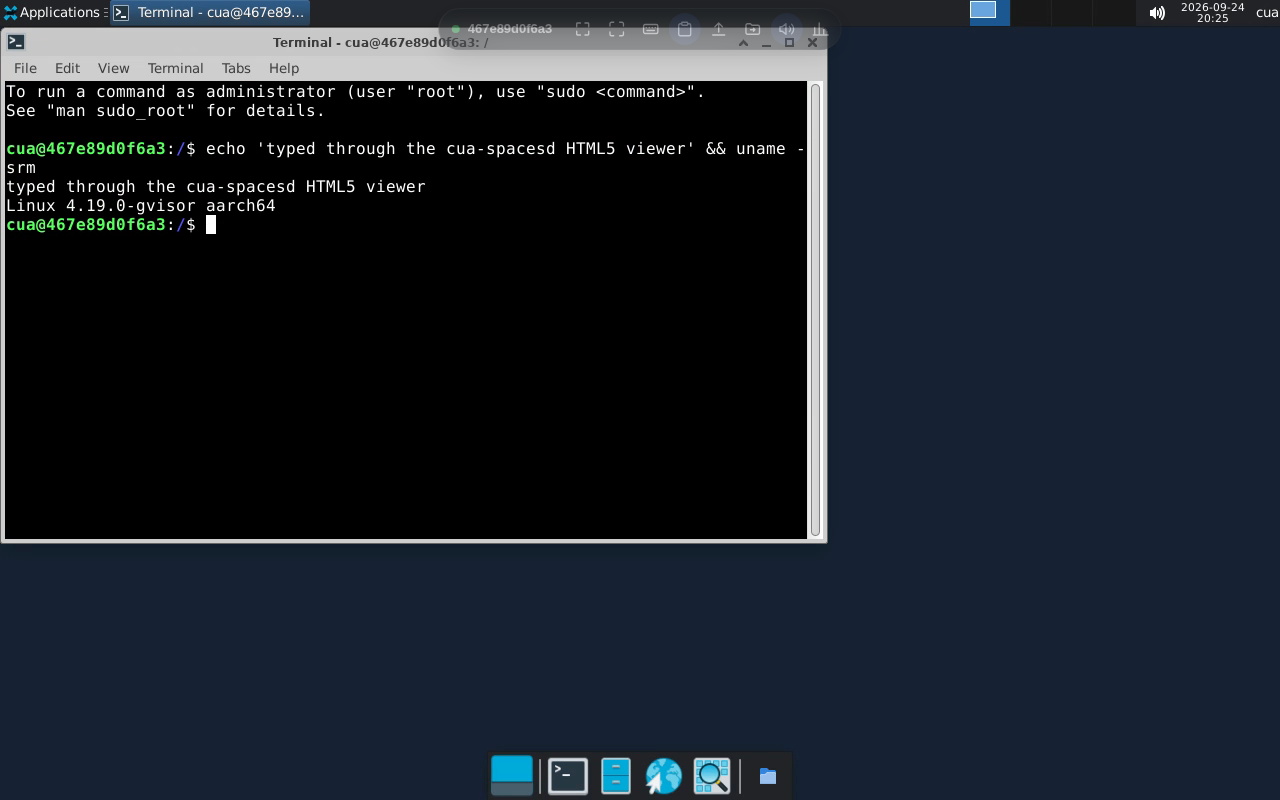
Release the sandbox:
cua sb rm -f first-fleetScripts read cloud credentials from the environment. Create an API key and export it (the secret is printed once):
cua auth keys create first-fleetexport CUA_CLIENT_ID="<client-id>"
export CUA_CLIENT_SECRET="<client-secret>"The TypeScript example can also use your cua auth login session when no key
is set.
You need Python >=3.11,<3.14 and uv. Download
the example and run it:
curl -fsSLO https://cua.ai/docs-assets/scripts/first-cloud-fleet/first_cloud_fleet.py
uv run first_cloud_fleet.py
The script header pins cua-sandbox==0.8.0 and runs Image.linux()
(ghcr.io/trycua/linux:24.04) unless CUA_FLEET_IMAGE names another image.
local=False sends it to the cloud; without it the sandbox runs on your
machine. Its core is:
async with Sandbox.ephemeral(image, local=False, cpu=4, memory_mb=4096) as sandbox:
    await sandbox.files.write_text(SOURCE_PATH, SOURCE_TEXT)
    result = await sandbox.shell.run(f"sha256sum {SOURCE_PATH}")
    ...
    SCREENSHOT.write_bytes(await sandbox.screenshot())
A successful run prints:
Claimed ...
Verified SHA-256: d9359aad71bda9a11a4fd2e8d72044d6f0f77519c6b6fb30d251806febcfb4d0
Screenshot: .../first-cloud-fleet.png
Claim released
Both scripts release the sandbox even when a step fails. If a process is
killed first, the sandbox expires on its own after its TTL (15 minutes by
default). Idle managed pools are deleted after 30 minutes, or now with
cua fleet pools gc; see
Clean up leftovers.
You ran a cloud sandbox from a registry image with no capacity setup. The CLI and the SDK reached cua-spacesd in the guest, and releasing the sandbox ended the charge.